Running your website
Mock tests and progress (Pro)
Marking a mock test on a phone or tablet in the car, the result and the result sheet with your logo, emailing it to the learner, and progress scores lesson by lesson.
On this page
A mock test tells a learner, and you, whether they're ready for the real thing. With Pro you mark it on a sheet like the examiner's, on a phone or tablet in the car, and the result is kept on the learner's record, shown in their learner account and, if you like, emailed to them with a result sheet carrying your logo.
How to start a mock test
You can start one in three places:
- From a lesson: open the lesson and, in the Mock test box, click Mark a mock test. The test is linked to that lesson.
- From the learner's record (the office): in the Mock tests box, click Start a mock test.
- From Driving school → Mock tests: choose one of your learners, or fill in Someone new with their name and email. For a learner under 18, tick Under 18 and add a parent or guardian's name, email and phone. If a learner with that name and email already exists, their record is used.
Instructors mark mock tests for their own learners (anyone they've given a lesson to, or added for a mock test). The office can mark any learner, for any instructor.
How to mark the drive
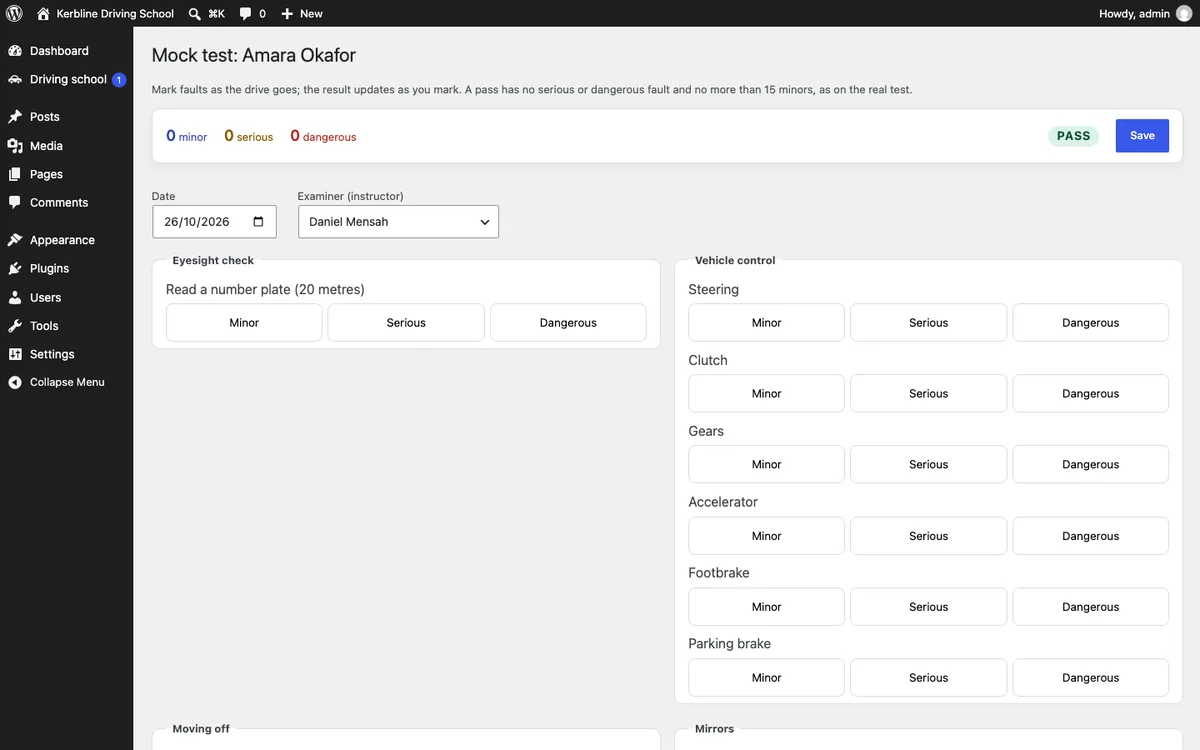
- Check the Date and the Examiner (instructor).
- As the drive goes, tap Minor, Serious or Dangerous under the item where a fault happens. Each tap adds one, and the button shows the count.
- Pressed one too many? Tap the round − on the button's corner to take one off.
- The bar at the top always shows the totals and Pass or Fail. A pass has no serious or dangerous fault and no more than 15 minors, as on the real test.
- Under Attitude and safety, slide Calmness and confidence and Eco-safe driving from 1 (low) to 5 (high).
- Write Notes for the learner: what went well and what to practise.
- Tick Email the result to send it to the learner (and their parent or guardian, for under-18s) when you save. Tick Staff only to keep it from the learner instead.
- Click Save (in the bar or at the bottom).
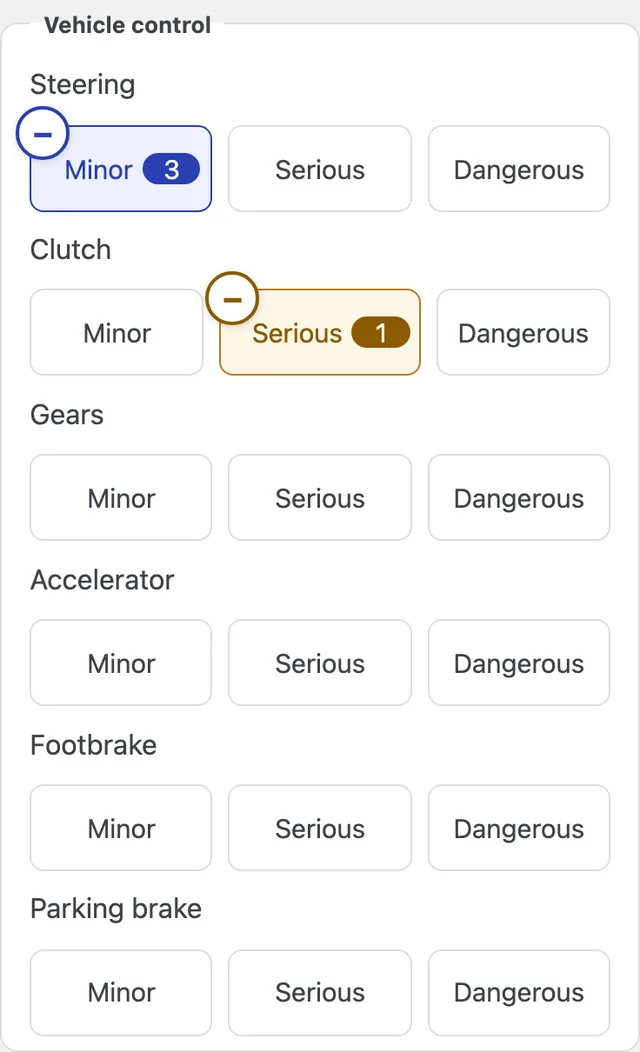
The sheet follows the examiner's sections: eyesight check, vehicle control, moving off, mirrors, signals, junctions, use of speed, following distance, positioning, pedestrian crossings, awareness and planning, clearance, response to signs and signals, manoeuvres, independent driving, and show me, tell me.
The result
After saving you see the result: Pass or Fail, the date and examiner, the faults by section, the attitude scores, your notes and To work on next (the items with faults, the most serious first). From there:
- Change marks corrects the sheet; the result updates.
- Result sheet (print or PDF) opens the result sheet (below).
- Email the result sends it, or sends it again.
- Delete (the office) removes it for good.
The learner's record lists every mock test in its Mock tests box, and the learner's Mock test date on the test tracker follows their latest one.
The result sheet
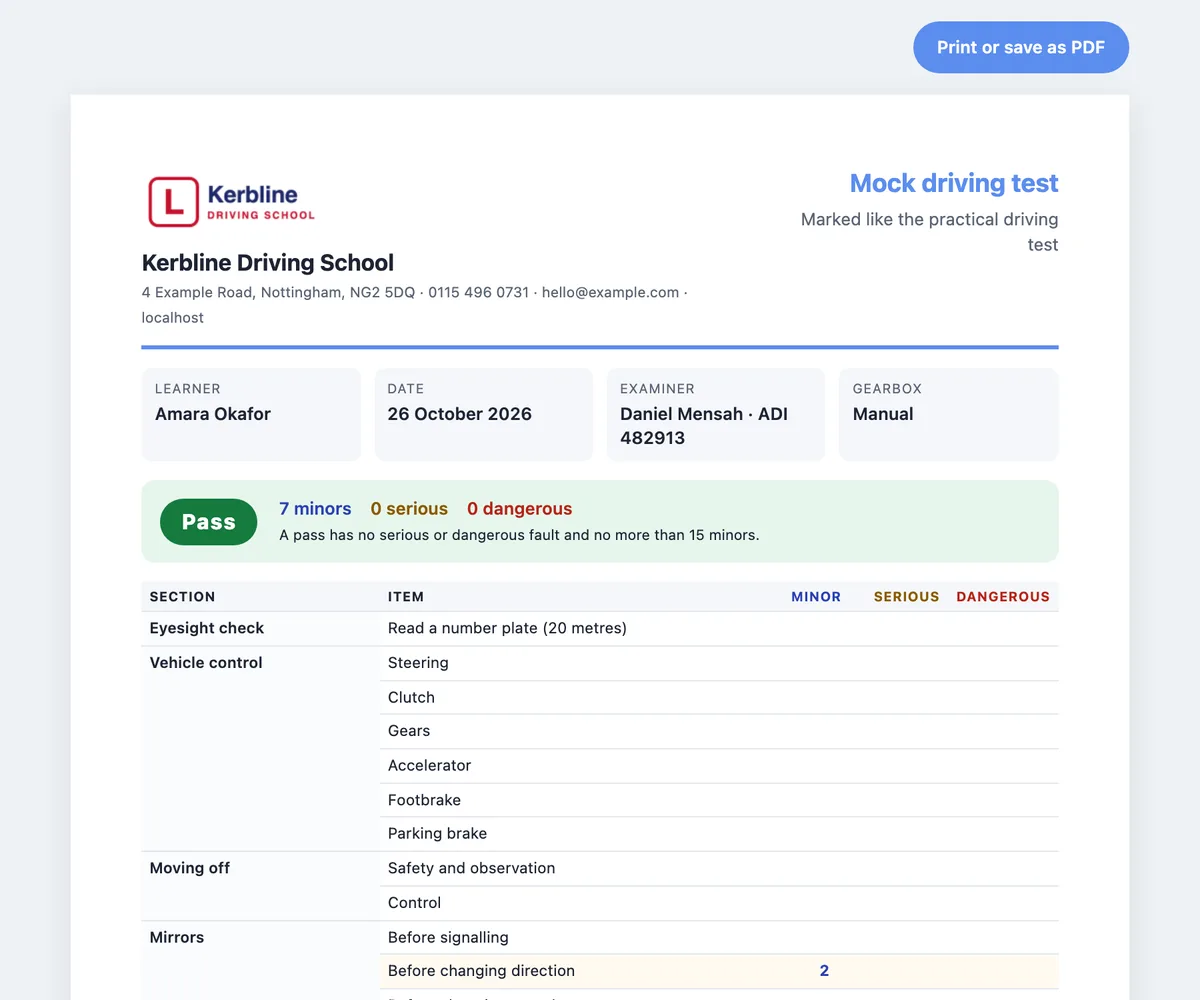
The result sheet is one page with your logo and business details (set under Driving school → Settings, on the Business and Contact tabs), the learner, date, examiner (with their ADI or PDI number from their profile), gearbox, the result and every section of the test with its faults, what to work on, the attitude scores and your notes. Click Print or save as PDF; on a phone, choose Save as PDF in the print options.
Emailing the result to the learner
Email the result sends the learner a branded email with the result, the faults, what to work on, your notes and an Open your result sheet button. A learner under 18 has their parent or guardian copied in, as with their lesson emails. The button opens their result sheet without signing in, so they can keep or print it.
The email has its own switch under Driving school → Settings → Email (Mock test result). A staff-only mock test is never emailed.
What the learner sees
In their learner account, learners see a Mock tests card: each test's result, date, faults, what to work on and your notes, with a link to its result sheet. Staff-only tests aren't shown.
Progress lesson by lesson
When an instructor scores a learner's skills after a lesson (the After the lesson: note and progress box on the lesson), the scores are now kept with that lesson as well as on the learner. So:
- The learner's record shows Progress over time: each skill's score after each of their latest scored lessons.
- The learner account shows each skill's trend under its name, for example 2 → 3 → 4.
Personal data
Mock tests are part of the learner's record: they're in Tools → Export Personal Data, removed by Erase Personal Data, and deleted when the learner is deleted. See Learners and parents.