Running your website
Instructors joining and commission (Pro)
Taking applications from instructors on your website (their badge, car, DBS details and documents), taking someone on in one step, badge and insurance reminders, giving learners to instructors, and your commission with a monthly statement for each instructor.
On this page
With Pro, your website can grow your school as well as your diary. Approved and trainee instructors apply on a Become an instructor page and send you their badge and documents. You look at each application in one place and, when you take someone on, their instructor profile and sign-in are made for you. You can then give them learners, and the website works out your commission on their lessons: what each instructor has earned, your share and what's owed either way, month by month.
Everything in this chapter needs a Pro or Agency licence.
How the money works
You keep taking your learners' payments exactly as you do now: online at booking, for block hours, or in the car. You then pay each instructor their share. The website keeps the account for you:
- Your share of each lesson: a percentage, for example 20%. Of a £40 lesson, £8 is yours and £32 the instructor's.
- A fee for each new learner you give an instructor, for example £25, once per learner.
- Who took the money: a lesson paid online or with block hours was paid to you, so you owe the instructor their share. A lesson paid in the car was paid to the instructor, so they owe you your share.
Each instructor's balance adds this up: "We owe £120" or "Owes us £30". When money changes hands, you record the payment and the balance goes down.
Switching it on
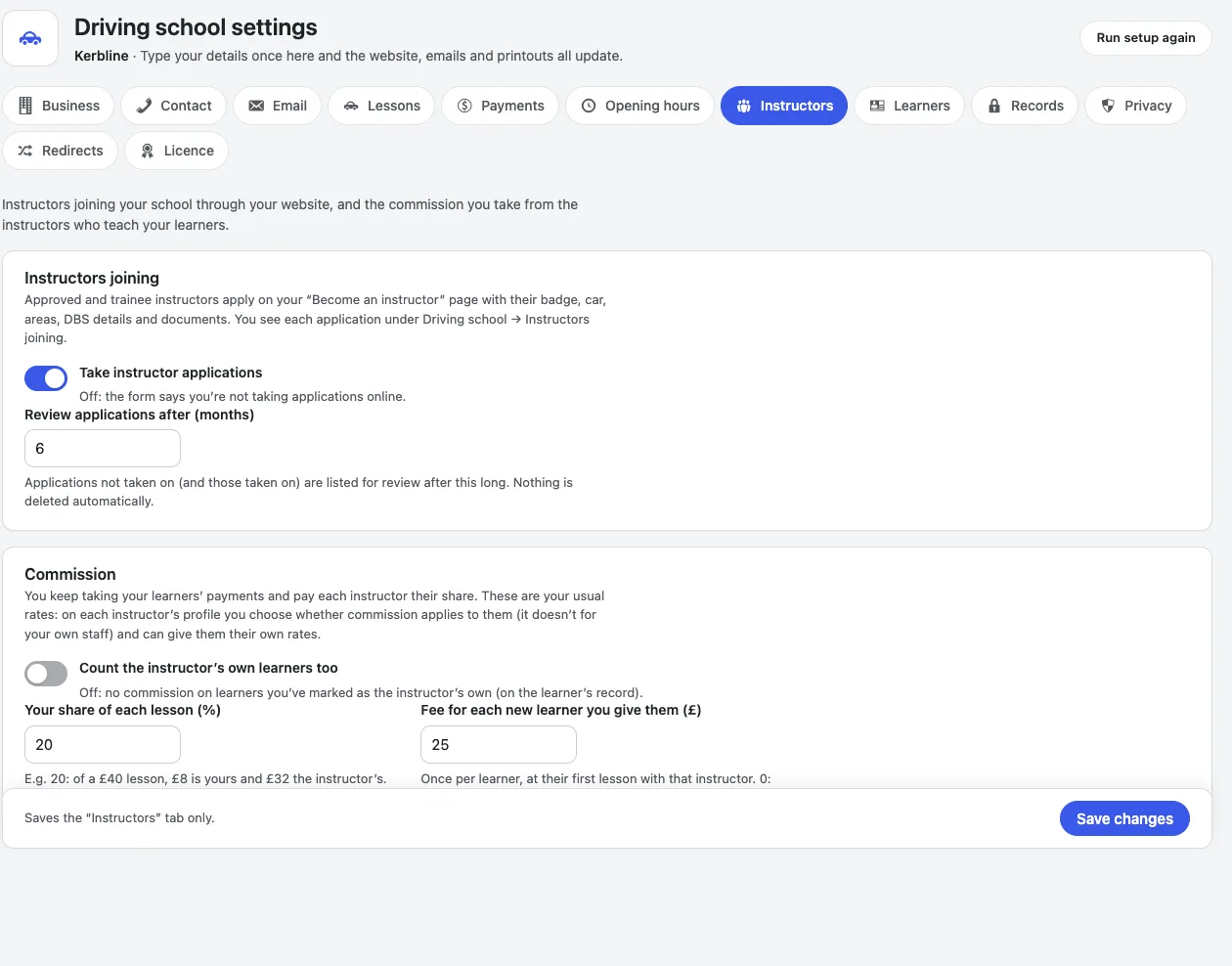
- Go to Driving school → Settings → Instructors.
- Under Instructors joining, switch on Take instructor applications.
- Review applications after (months): 6 to start with. See Reviewing and deleting applications.
- Under Commission, type Your share of each lesson (%) and Fee for each new learner you give them (£). Leave either at 0 if you don't charge it. Lessons nobody marks count after (days): 7 to start with (see Which lessons count).
- Count the instructor's own learners too: leave this off if instructors who bring their own learners keep everything from them.
- Click Save changes.
The Become an instructor page
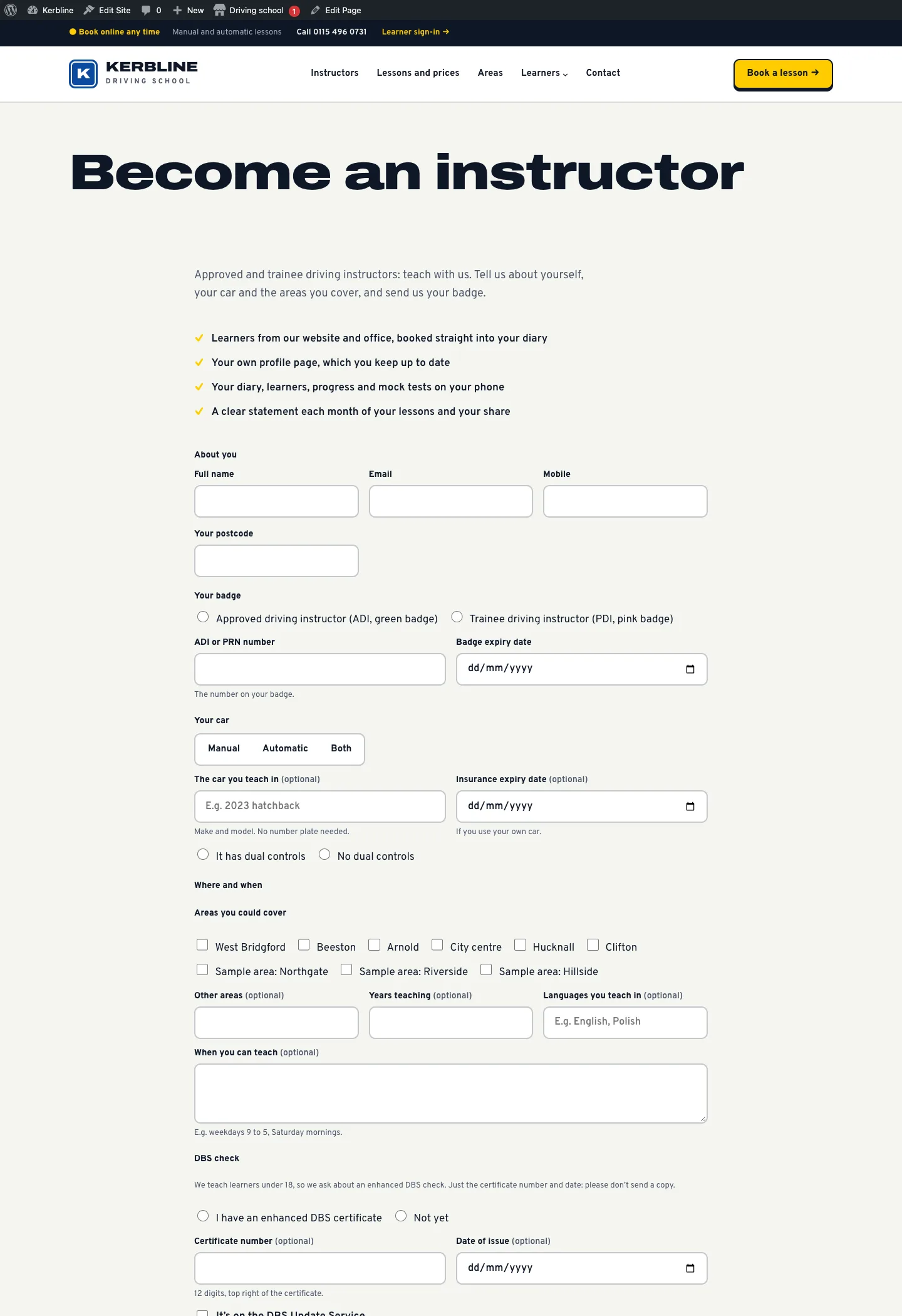
The setup wizard adds a Become an instructor page when you have Pro (run Settings → Run setup again and tick Pages if you set up your website before). It isn't in the main menu: link to it where it suits you, for example from your footer or your About page. You can also add the Become an instructor block to any page.
Instructors fill in:
- their name, email, mobile and postcode;
- their badge: approved driving instructor (ADI, green badge) or trainee (PDI, pink badge), the number on it and its expiry date;
- the car: manual, automatic or both, the make and model, dual controls and when their insurance runs out;
- the areas they could cover (your areas, plus any others), when they can teach, years teaching and languages;
- their DBS check: whether they have an enhanced certificate, its 12-digit number, the date it was issued, and whether it's on the DBS Update Service. The form asks them not to send a copy;
- documents: a photo of their badge (needed), their insurance certificate and up to two other files, such as a CV. Photos (JPG, PNG or WebP) or PDFs, up to 8 MB each.
The website checks each document is really a photo or a PDF, whatever its name says. When they send it, you're emailed (see Settings → Email → New instructor application) and they get a thank-you email.
Looking at applications
Go to Driving school → Instructors joining. New applications have a count bubble in the menu.
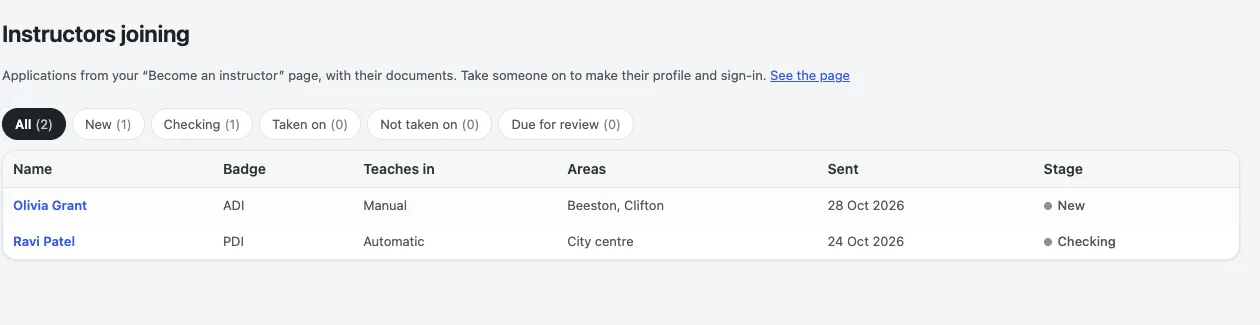
The list shows each applicant's badge, gearbox, areas, the day they applied and the stage: New, Checking, Taken on or Not taken on. Use the links above the list to see one stage.
Click a name to open the application:
- What they sent: every detail from the form;
- Documents: click one to open it (photos open in your browser, PDFs download);
- Next: what you can do;
- Office notes: only staff see these, for example when you spoke, references and the badge checked against the DVSA;
- History: when it changed stage and who changed it.
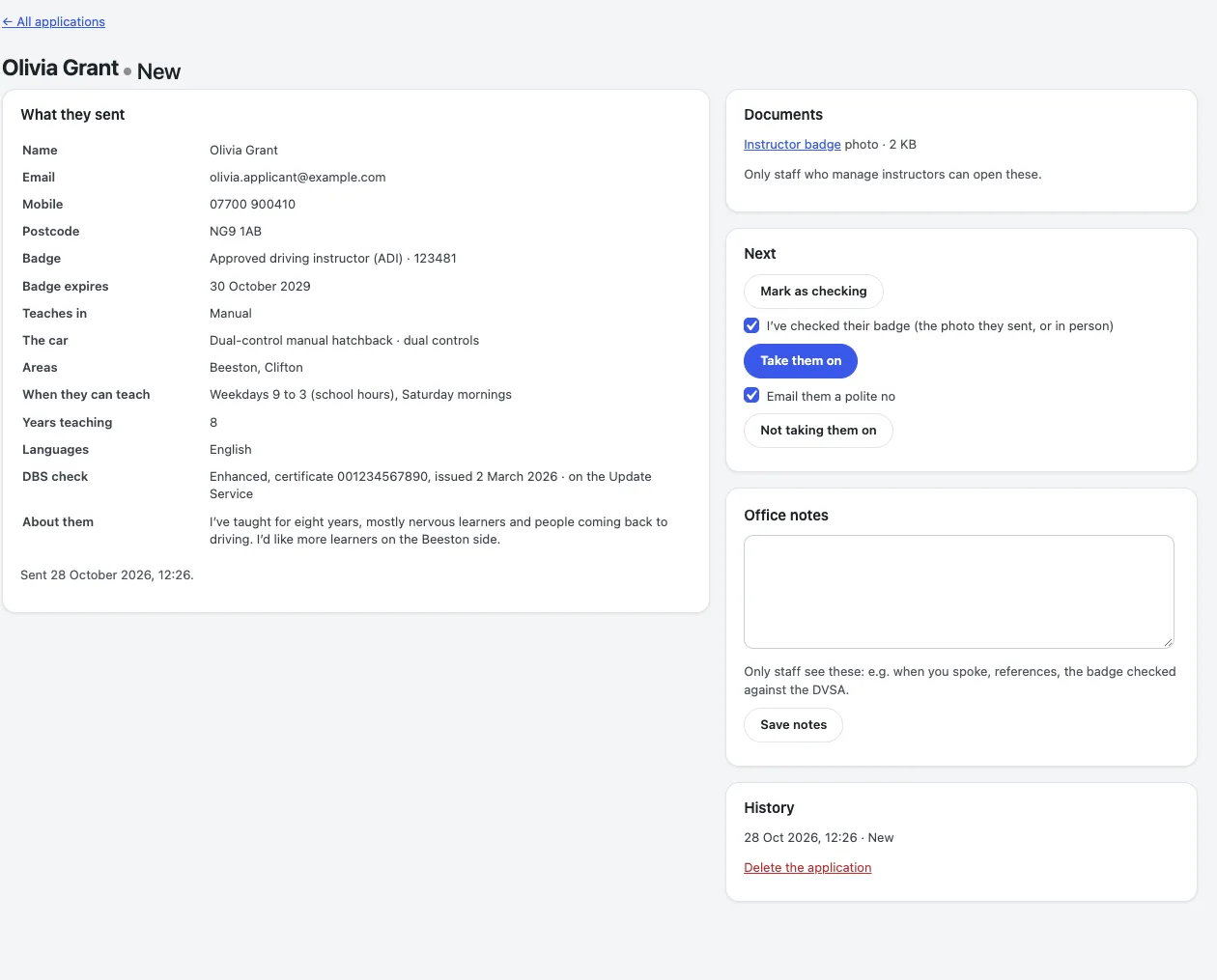
Click Mark as checking when you start looking into it.
Taking someone on
- Open their application.
- Leave I've checked their badge ticked if you've seen it, in the photo they sent or in person.
- Click Take them on and confirm.
The website then:
- makes their instructor profile with their gearbox, car (without a number plate), languages, ADI number and areas. It's a draft until you publish it, so you can add their photo and words first;
- records the badge as checked today (if you ticked it), the badge and insurance expiry dates and their DBS number and date in the profile's Office: badge, insurance and DBS panel;
- sets Commission to your usual rates;
- makes them a sign-in with the Instructor role, linked to the profile, and emails them a link to set their password.
When you're happy with the profile, open it under Driving school → Instructors and click Publish. They're then offered for booking (switch off Offer their free times on the booking page to wait). See Instructors.
Not taking someone on
Open the application, leave Email them a polite no ticked if you'd like them told, and click Not taking them on. The email thanks them and says you'll keep their details on file for a while.
Reviewing and deleting applications
Data protection law asks you to keep personal data only as long as you need it. Nothing is deleted automatically. Applications not taken on, and those taken on, come up under Due for review once the months you chose under Settings → Instructors have passed since their last change.
To delete one, open it and click Delete the application (administrators only), then type DELETE to confirm. Its documents are deleted with it. A profile made from it stays.
An applicant can also ask for their data: Tools → Export Personal Data and Erase Personal Data find applications by email address.
Badge and insurance reminders
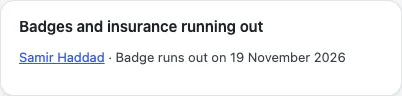
On every instructor's profile, the Office: badge, insurance and DBS panel has Badge expires, Insurance expires, the DBS certificate number and the date it was issued. Thirty days before a badge or insurance runs out, the office is emailed once (Settings → Email → Badges or insurance running out), and Today lists it until you update the date.
Giving learners to instructors
- Open the learner under Driving school → Learners.
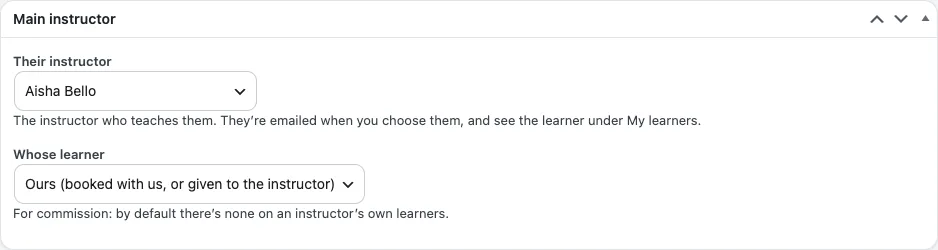
- In the Main instructor box, choose Their instructor.
- Whose learner: leave Ours for learners who came to you. Choose The instructor's own for learners the instructor brought.
- Click Update.
The instructor is emailed the learner's name, contact details, gearbox and test date, and (for under-18s) the parent or guardian's name and phone (Settings → Email → A new learner for the instructor). When they sign in they see the learner under My learners, with their next lesson and test date, can mark their mock tests and see their test date. The Learners list shows each learner's instructor.
Commission for each instructor
On each instructor's profile, open the Office: commission panel:
- None (one of our own staff): the default. Nothing is counted. Use this for instructors you employ.
- Our usual rates: the rates under Settings → Instructors.
- Their own rates: type their own percentage and new learner fee.
Lessons count from the day commission starts for that instructor, so lessons before that never appear on their statement.
Which lessons count
A lesson counts once:
- the instructor marks it Taught, or
- the learner taps I had this lesson (on the lesson's page from their email, or under Lessons to confirm in their learner account), or
- nobody has marked it a number of days after it ended: 7 to start with (Settings → Instructors → Lessons nobody marks count after (days)).
If the learner taps I didn't have this lesson, the office is emailed and the lesson doesn't count until you mark it Taught, Didn't turn up or Cancel. Today lists the lessons still to mark under Lessons to mark, with Taught and Didn't turn up links.
A lesson cancelled late with its payment kept counts too, as the instructor kept the time free (see Online booking: after the cut-off). Cancelled, declined and Didn't turn up lessons don't count. If a lesson is cancelled after it counted, it comes off by itself.
Each lesson's value is:
- what it cost when it was booked, for a lesson paid online;
- the block's price per hour, for a lesson paid with block hours;
- the lesson type's price for the gearbox, for anything else.
The new learner fee is added once, at the learner's first counted lesson with that instructor, for your own learners only.
The rate is kept as it was when the lesson counted, so changing rates later doesn't change past lessons.
Instructor money
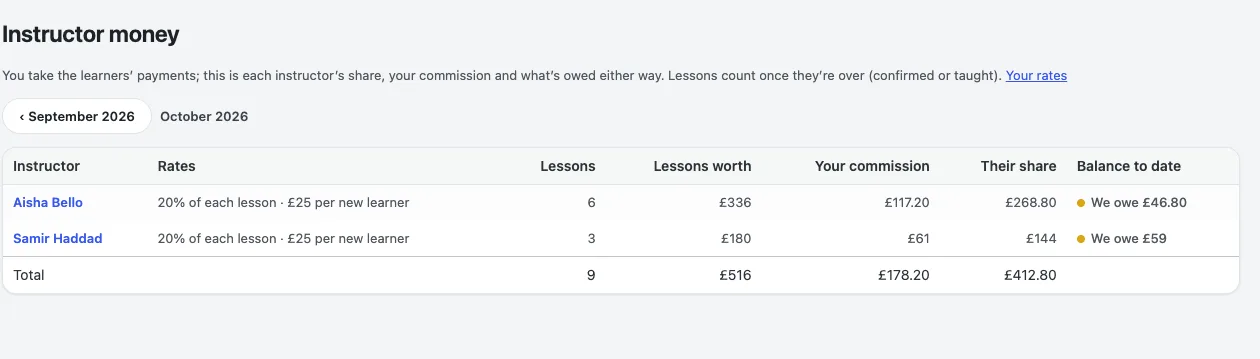
Go to Driving school → Instructor money to see this month for every instructor commission applies to: their rates, lessons, what the lessons were worth, your commission, their share and the balance to date. Use the month buttons to look back.
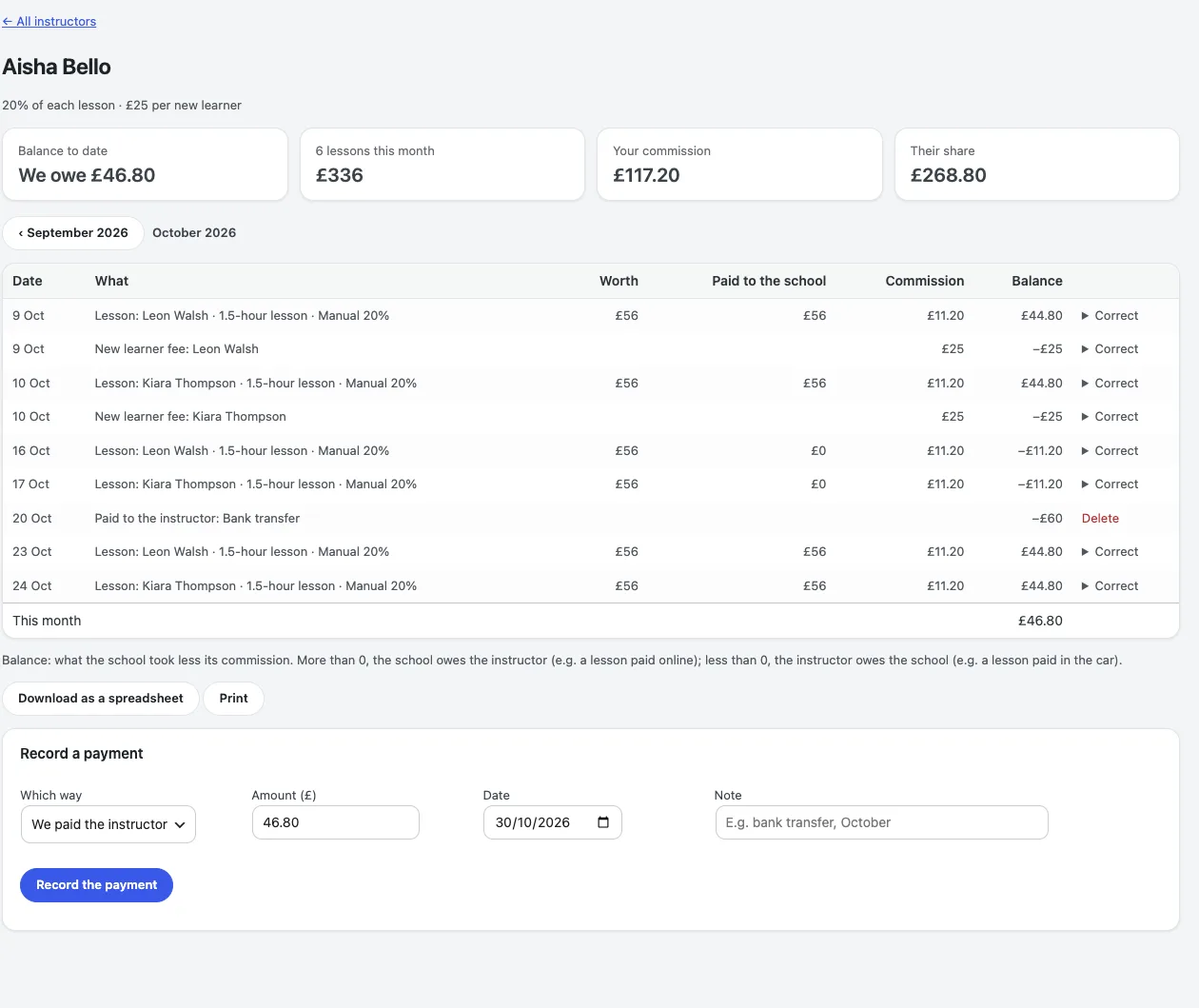
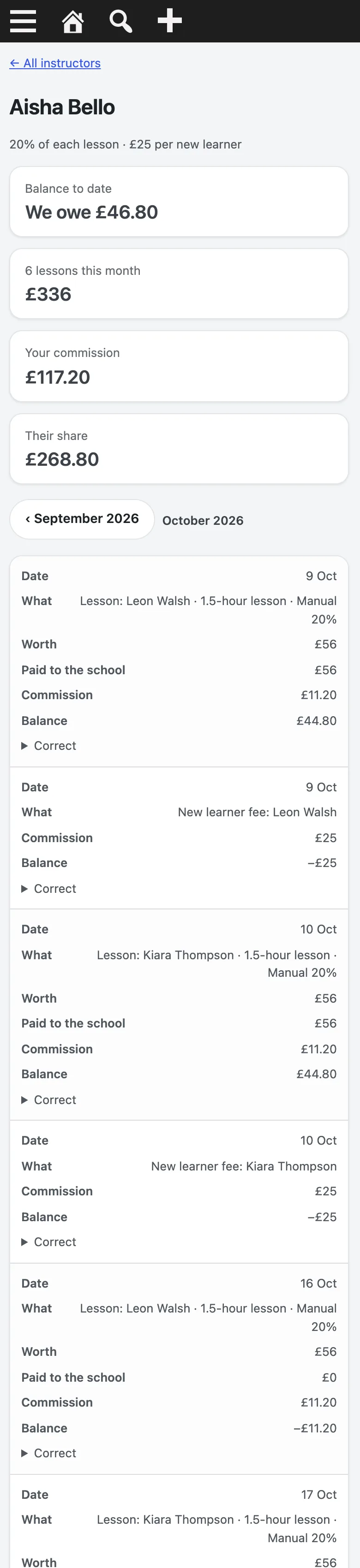
Click an instructor to open their statement: the balance to date, this month's lessons and your commission, then every lesson, fee and payment with its balance.
How to record a payment
- Under Record a payment, choose We paid the instructor or The instructor paid us. The amount is filled in with the balance.
- Change the amount if you paid part of it, the date, and add a note, for example the bank reference.
- Click Record the payment.
To undo a payment recorded by mistake, click Delete on its row.
How to correct a row
If a lesson was paid differently from what the website assumed (for example, a lesson booked online but paid in cash in the car), click Correct on its row, change Worth or Paid to the school, and click Save. A corrected row stays as you set it, even if the lesson changes later. You can correct a new learner fee the same way.
Download and print
Download as a spreadsheet gives the month as a CSV file for your accounts. Print prints the statement without the buttons and forms.
On a phone, each row shows as a card.
What instructors see
Instructors on commission get My earnings when they sign in: their own statement, month by month, with "We owe you" or "You owe us". They can't change anything on it.