Running your website
Assignments (Pro)
Setting an assignment for a class, how students hand in text, a link or a file, late work and changing work, marking with a mark and feedback, returning it, the emails, files and how long work is kept.
On this page
An assignment is work you set for a class. Students hand it in from the student portal, you mark it in the staff portal, and they see their mark and feedback.
Assignments need a Pro or Agency licence. Features marked (Pro) need a Pro or Agency licence.
How to set an assignment
- In the staff portal, go to Assignments and click Set an assignment (or open a class and click it there).
- Choose the Class.
- Type a Title and the Instructions: what to do and how to hand it in.
- Give a Due date and, if you like, a time (Due by). No time means the end of the day. No due date means it's never late.
- If you mark out of a number, type it in Marks out of (for example 12).
- Add a Link (a worksheet, a video) or A file if you like.
- Leave Tell the class ticked: each student gets an assignment notice in their inbox and an email (for a child, the parent gets a copy).
- Click Set the assignment.
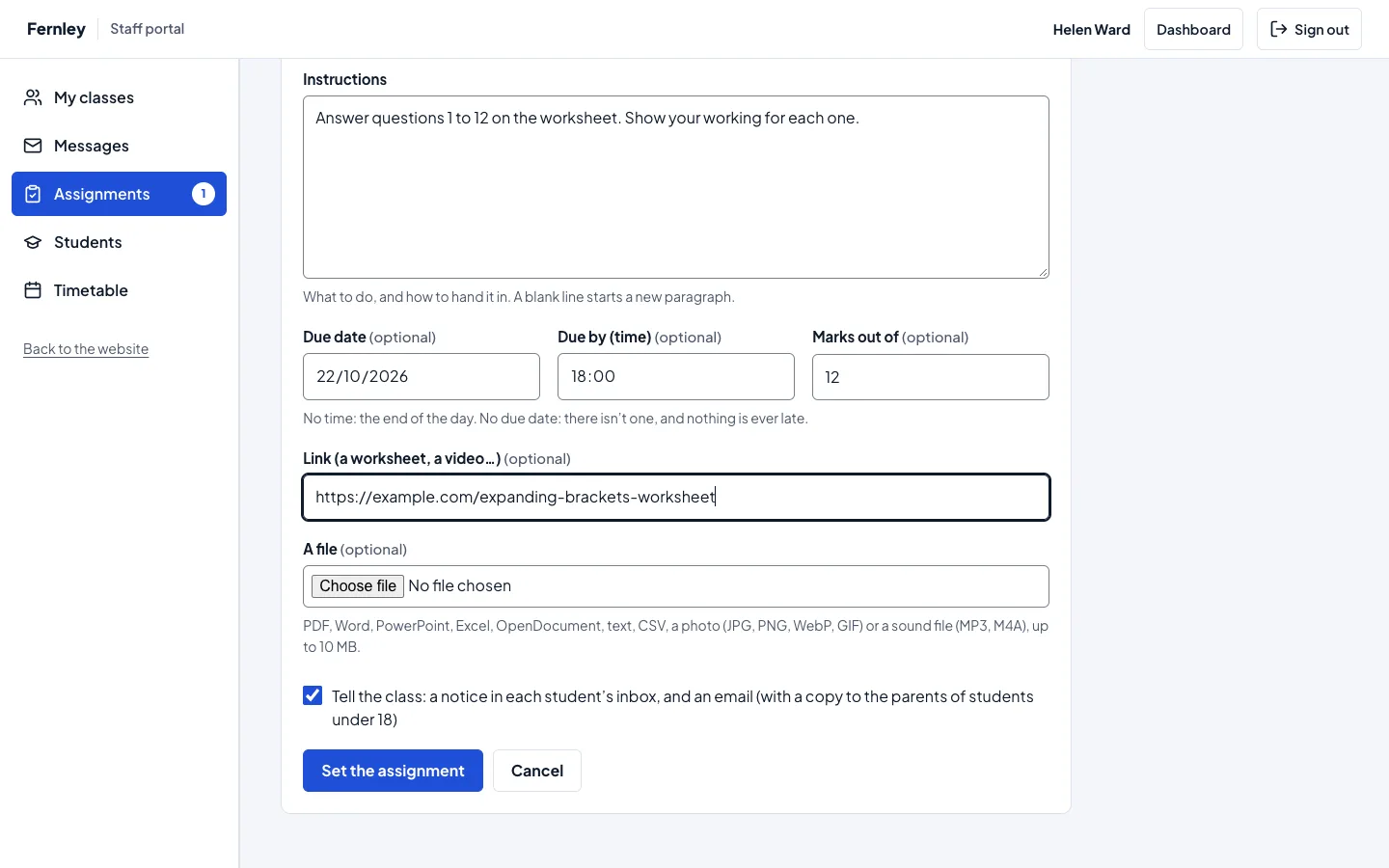
To change it later, open the assignment and click Change it. Delete the assignment deletes it with the work handed in for it.
How students hand in their work
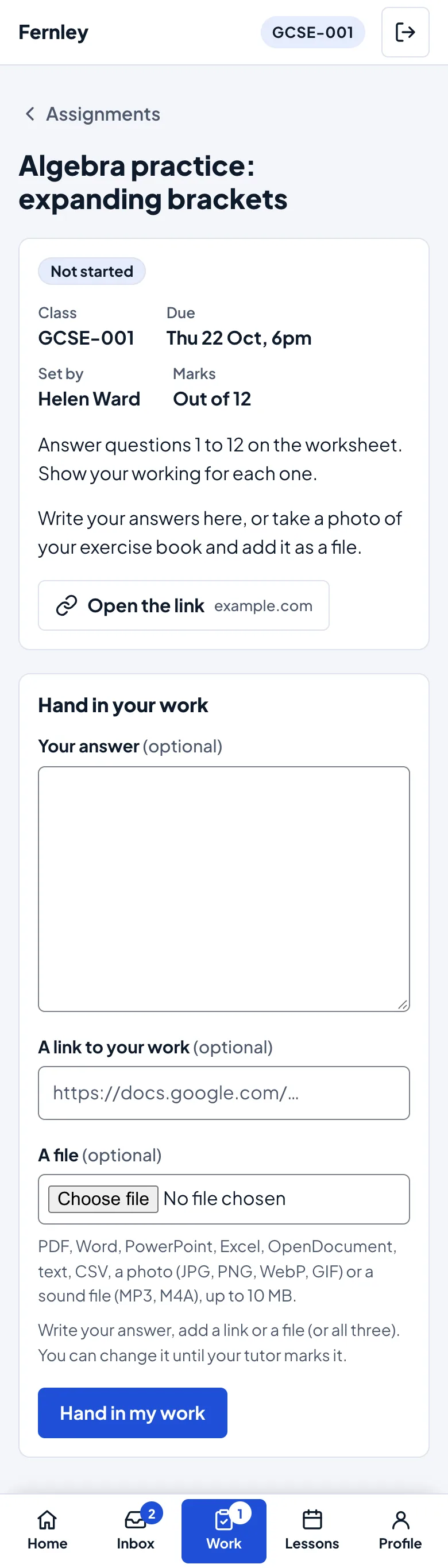
The student opens the assignment in the student portal, and under Hand in your work adds any of:
- Your answer: text they type or paste.
- A link to their work, for example a Google Doc.
- A file: a PDF, Word, PowerPoint, Excel or OpenDocument file, text or CSV, a photo (JPG, PNG, WebP or GIF), or a sound file (MP3 or M4A).
Then they click Hand in my work. Their tutor is told by email.
Changing work
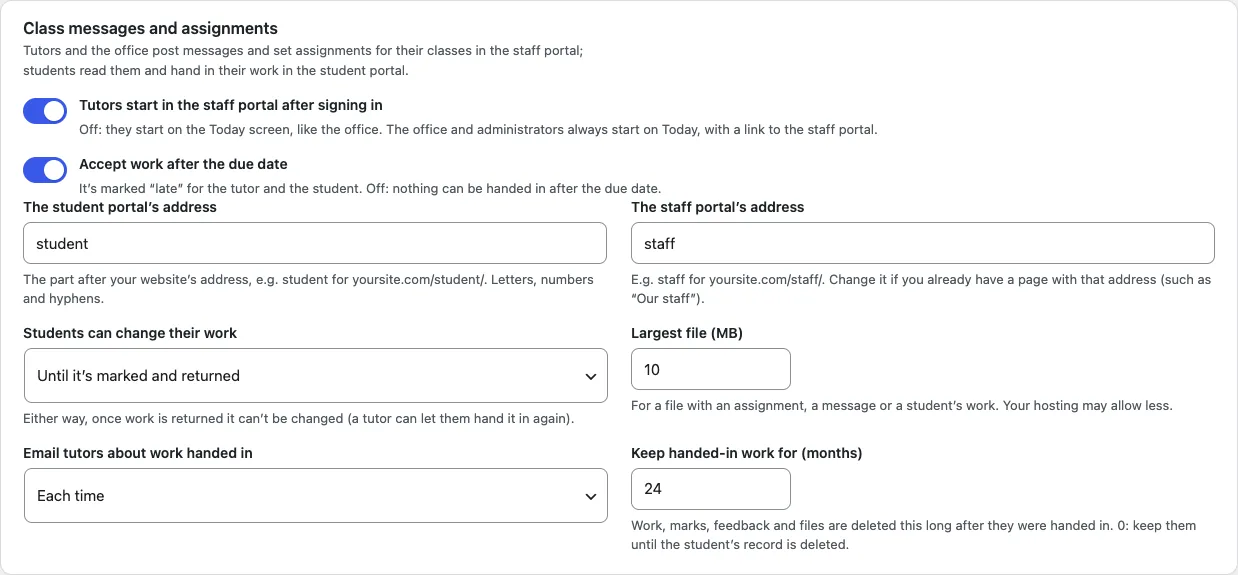
Students can change what they handed in (Save my changes) until you return it marked. To stop changes at the due date instead, choose Until the due date under Tutoring → Settings → Lessons → Students can change their work.
Late work
- Work handed in after the due date is labelled Handed in late, for you and the student.
- An assignment past its due date with nothing handed in shows Late: not handed in.
- To refuse work after the due date, switch off Accept work after the due date in the same settings.
Marking
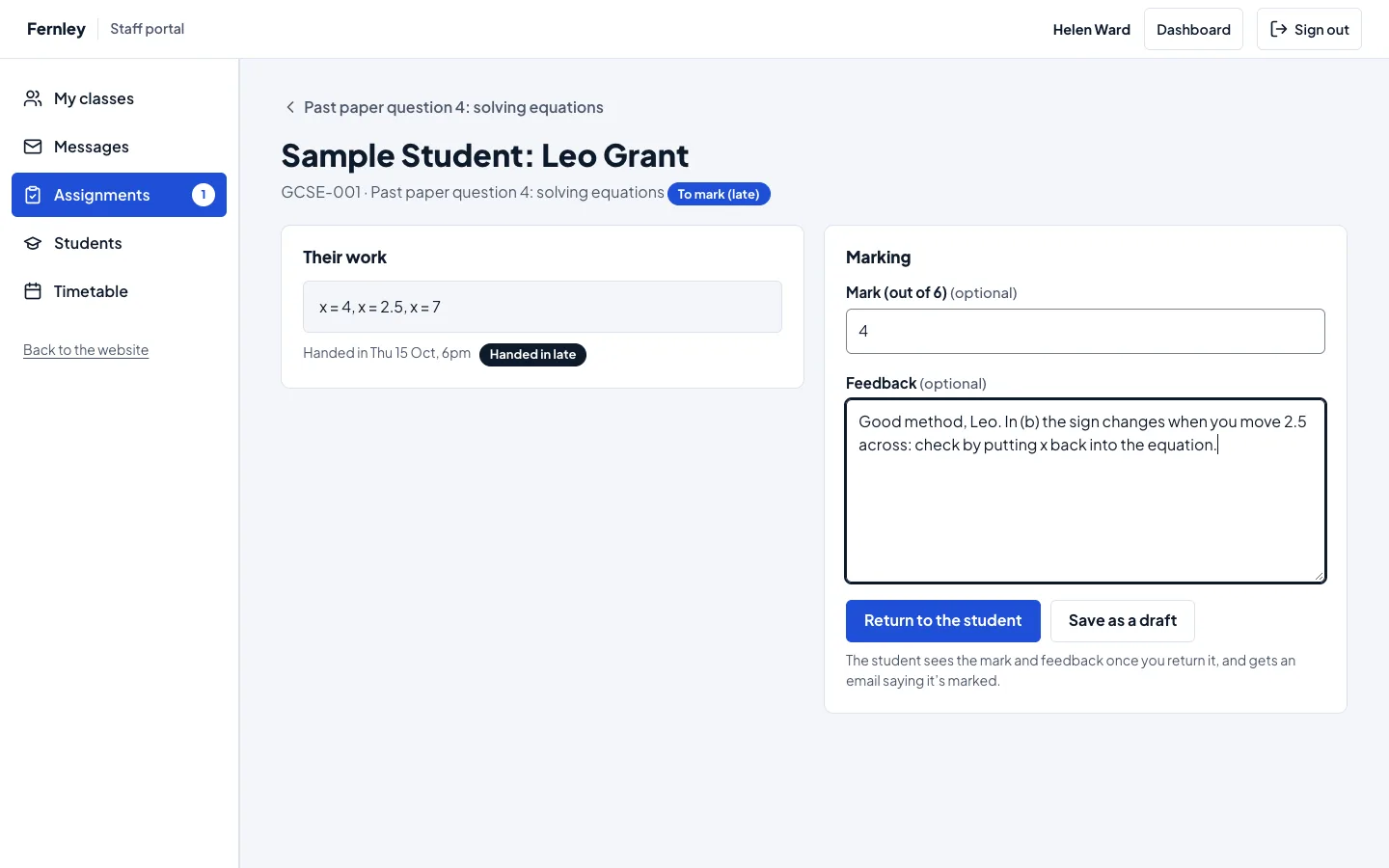
Assignments → To mark lists the work handed in and not returned, oldest first. Open an assignment to see every student in the class and where their work stands, or open the work itself.
- Read the work: the answer, the link and the file (click it to open it).
- Type a Mark (with Marks out of, a number, for example 5; without it, anything such as 8/10, A or Merit) and your Feedback.
- Click Return to the student. Or Save as a draft to come back to it: the student doesn't see a draft.
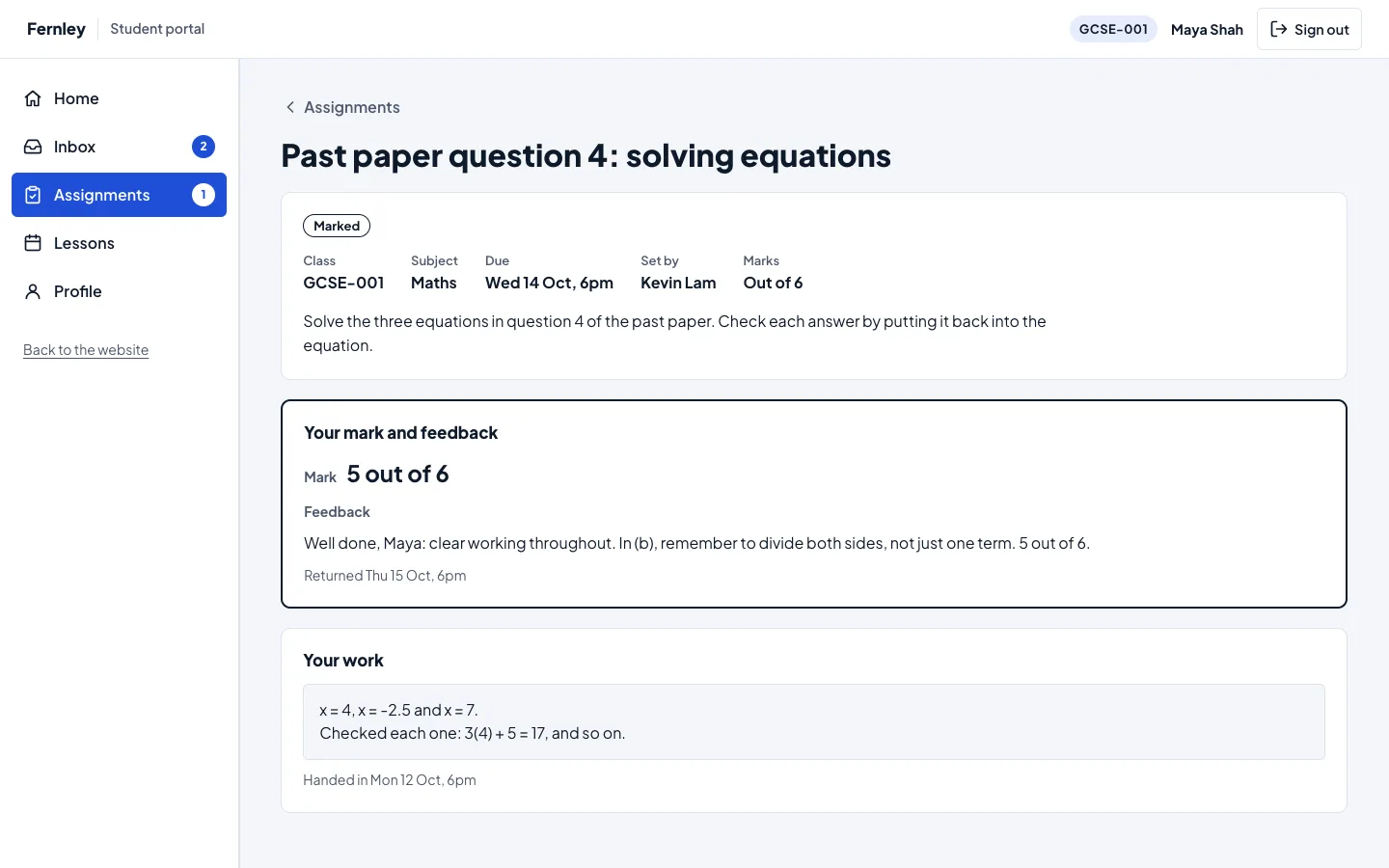
When you return work:
- The student sees Marked, with the mark and your feedback, in the student portal.
- They get an email saying it's marked (the mark isn't in the email). For a student under 18, the parent or guardian is told too.
- They can't change it any more. Let them hand it in again opens it again if you'd like a new version.
You can change a returned mark: type the new one and click Update and tell the student.
Emails to tutors
The class's tutors are emailed (at the email on their tutor profile) when work is handed in. Under Tutoring → Settings → Lessons → Email tutors about work handed in choose:
- Each time (the default);
- Once a day (about 5pm), all together: one email listing everything new;
- Don't email them.
Under Tutoring → Settings → Email each email has its switch: New assignment, Work marked and Work handed in.
Files
- Files are kept in a private folder that the website never shows directly. Only the student, the tutors of their class and the office can open a student's work; only the class can open an assignment's file.
- The largest file is set under Tutoring → Settings → Lessons → Largest file (MB) (10 MB to start with; your hosting may allow less).
- Files are checked for what they really are, not just their name: web pages, scripts and other risky files are refused.
On a host that uses nginx rather than Apache, ask your host to deny web access to wp-content/uploads/gstu-private/. The files' names are long random strings either way.
How long work is kept
Handed-in work, with its marks, feedback and files, is deleted 24 months after it was handed in. Change it under Tutoring → Settings → Lessons → Keep handed-in work for (months); 0 keeps it until the student's record is deleted.
- A copy of a student's data (Tools → Export Personal Data) includes their work, marks and feedback, and the names of their files.
- Deleting or erasing a student's record deletes their work and its files.
- The privacy policy starter page describes all of this.
Sample content
In the setup wizard's Starter content, Sample messages and assignments for the sample class (Pro) adds two messages and two assignments for the sample class GCSE-001, one with work handed in and marked, without sending any email. They go when you remove the sample class under Site Settings → Sample content.