Running your website
Class messages (Pro)
Sending a message to one or more classes from the staff portal: what goes in it, who gets it (and the parent's copy for children), how read counts work without tracking emails, deleting a message, and the emails' settings.
On this page
A class message goes to every student in one or more classes: in their Inbox in the student portal, and by email. Use it for news, reminders and anything the whole class needs to know.
Class messages need a Pro or Agency licence. Features marked (Pro) need a Pro or Agency licence.
Who can send to whom
- A tutor can send to the classes they teach.
- The office (and administrators) can send to any class, or several at once.
How to send a message
- In the staff portal, go to Messages and click New message (or open a class and click New message there).
- Under To, tick the classes.
- Choose the kind: Information or Message.
- Type a Title and the Message. A blank line starts a new paragraph; web addresses become links.
- If you like, add a Link (a worksheet, a video), a Due date or A file.
- Leave Email it to the students too ticked, unless it should go to the inbox only. Tick Send me a copy for a copy in your own email.
- Click Send the message.
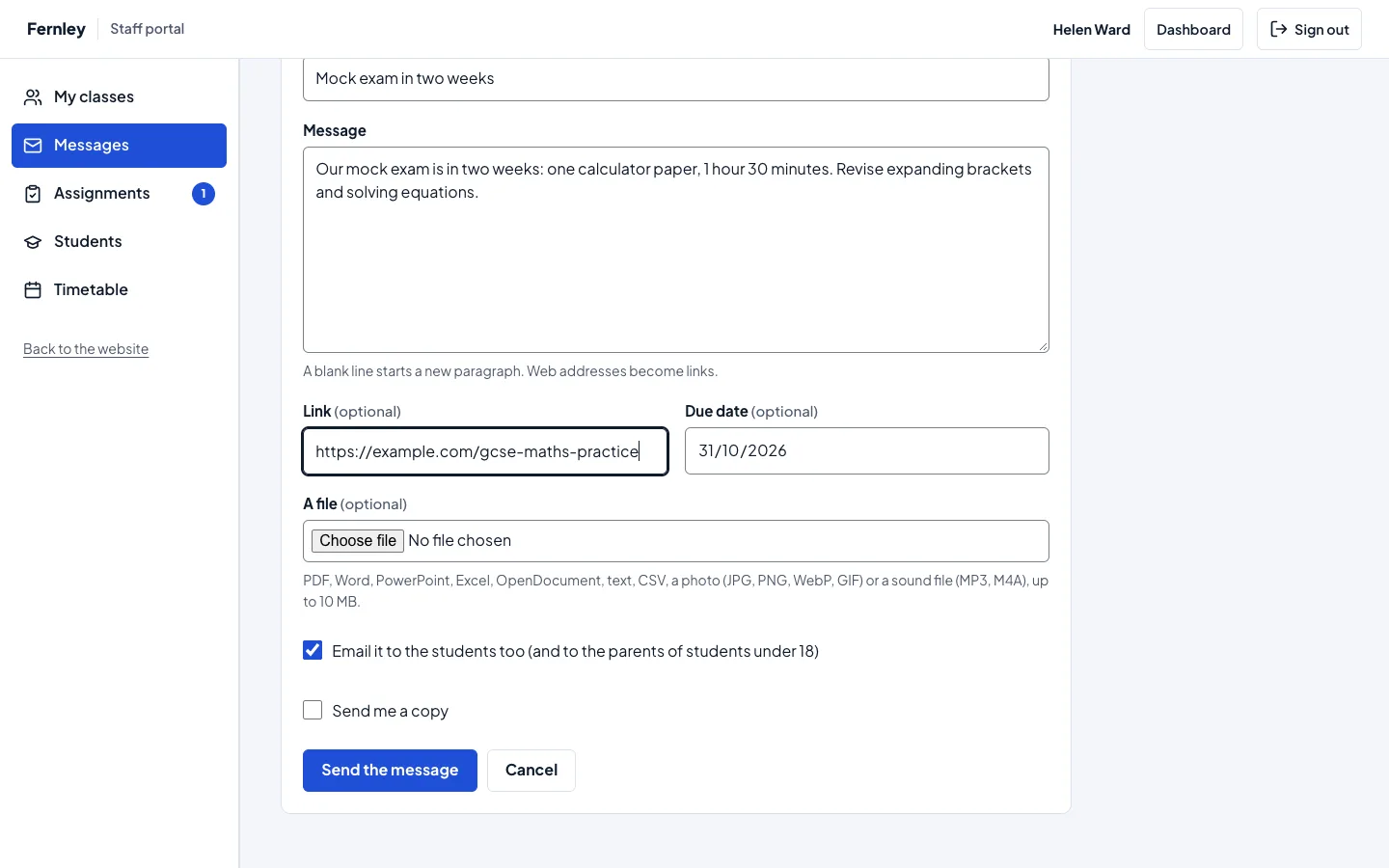
The message is in each student's inbox at once. For an assignment, use Set an assignment instead: students hand in their work and you mark it (see Assignments). Setting one posts an Assignment notice to the class by itself.
Who gets it
- Every student who is in the class when you send it. A student who joins later doesn't get earlier messages.
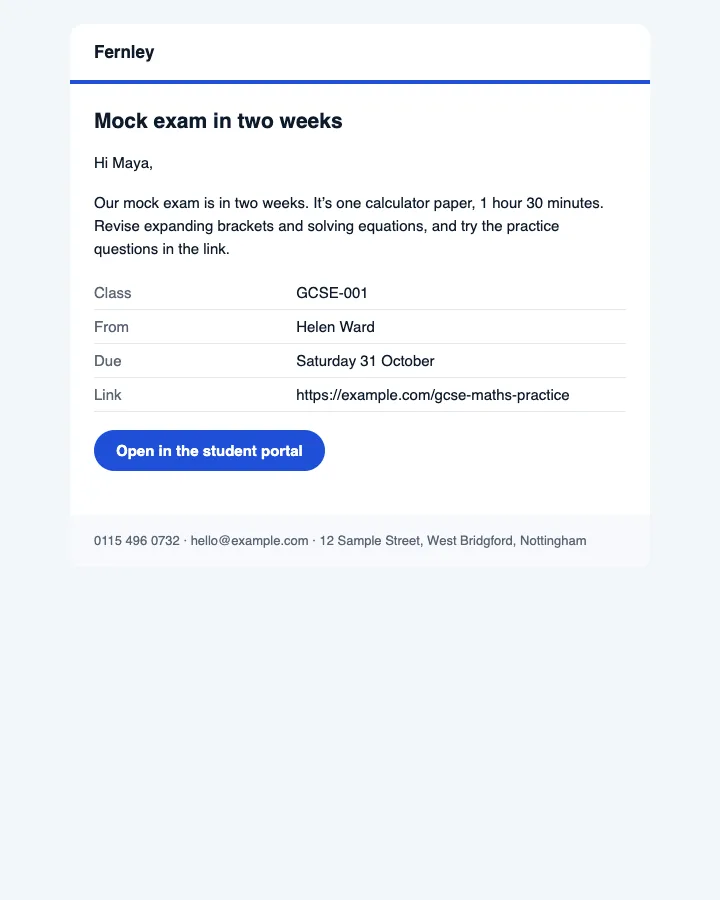
- Each student by email, at the email on their record (their sign-in email if they have a student account).
- For a student under 18, the parent or guardian gets a copy that starts "A copy for you of a message to Maya's class".
Read counts
Each message shows, for example, Read by 2 of 4. Open it to see who has read it, and when:
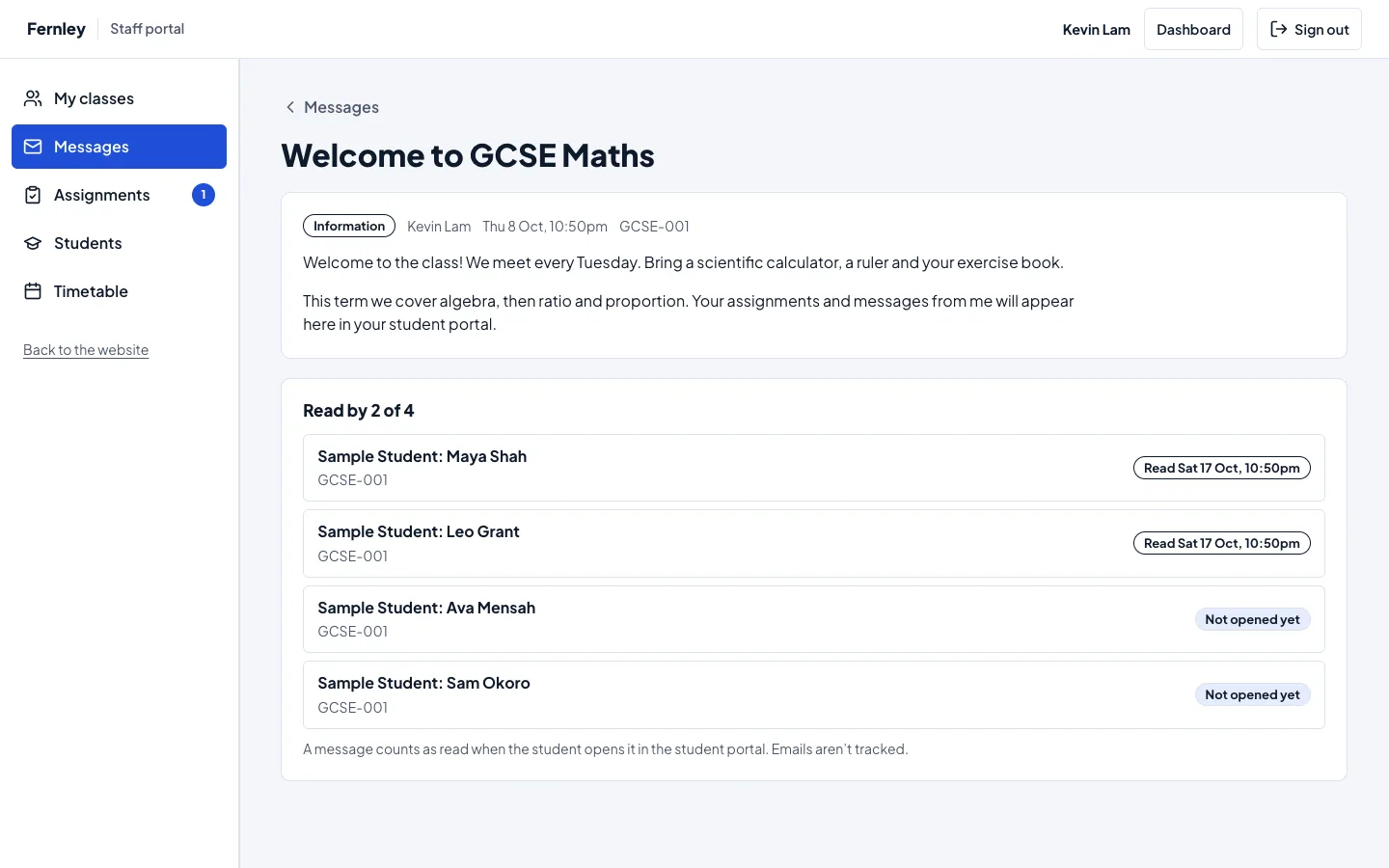
- A message counts as read when the student opens it in their inbox in the student portal.
- Emails aren't tracked. There's no hidden picture or special link in them, so nothing is known about who opened an email. That keeps the website within the UK's PECR rules on tracking.
- A tutor sees the students in their own classes. The office sees everyone the message went to.
- Looking at the message yourself doesn't count as anyone reading it.
Deleting a message
Open the message and click Delete the message, then confirm. It goes from every student's inbox. Emails already sent can't be taken back. The person who sent it and the office can delete a message.
Emails
Under Tutoring → Settings → Email:
- Class message: the email to students and parents. Switched off, messages go to the inbox only.
- New assignment: the assignment notice's email (see Assignments).
Files
A file you add (up to 10 MB, see Assignments for the kinds) is kept privately: only the students the message went to, and staff who can see the message, can open it. It isn't in the email; the email says to open it in the student portal.
Privacy
- The website keeps each message, who it went to and when each student first opened it in the portal.
- A copy of a student's data (Tools → Export Personal Data) lists their class messages and when they opened each one.
- Deleting or erasing a student's record removes them from every message's list.