Running your website
The student portal (Pro)
The app-like page where students read their class messages, hand in assignments and see their mark and feedback, their lessons, tests and profile, on a computer or a phone; its address, and what it keeps private.
On this page
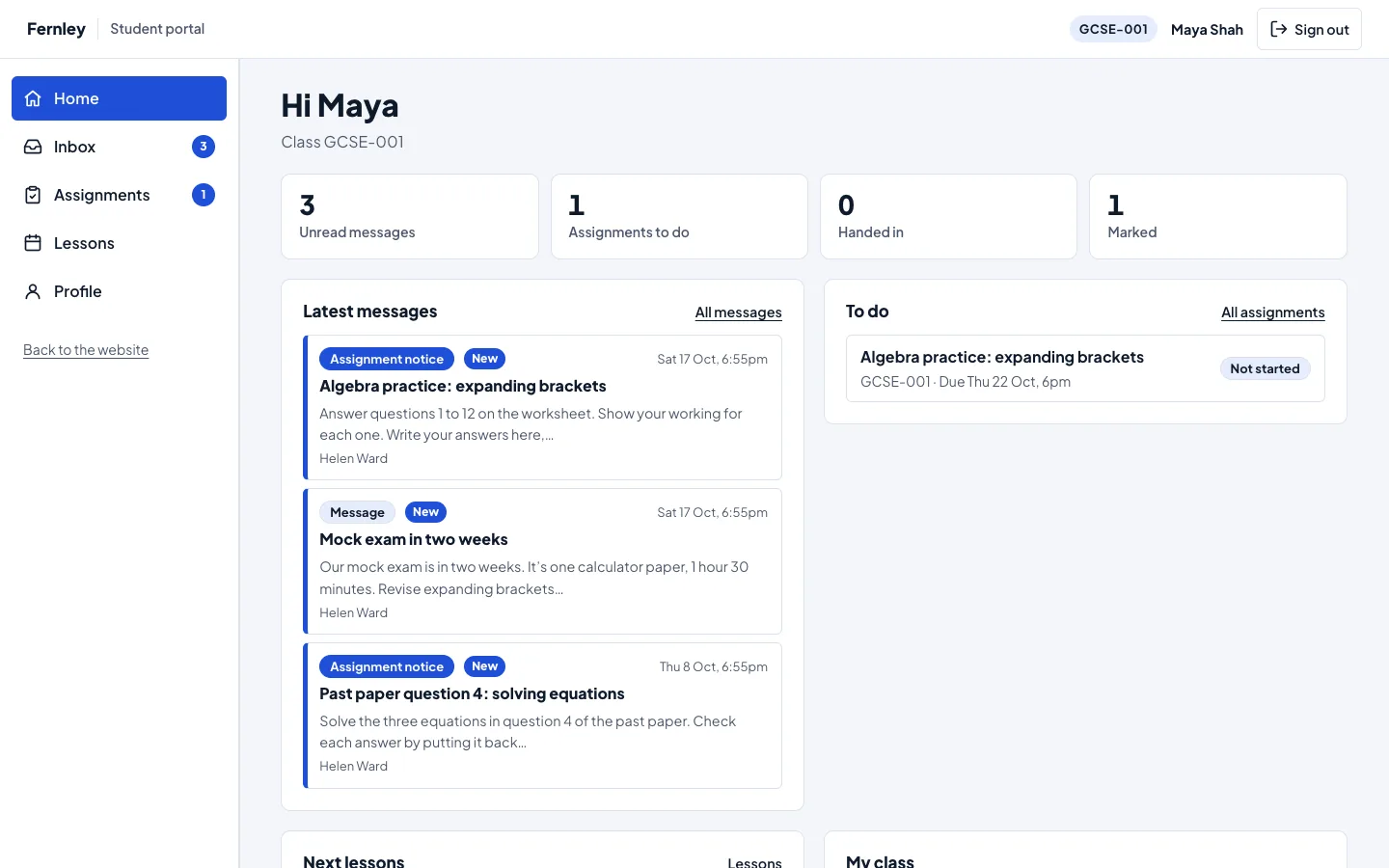
The student portal is where your students go once they've signed in. It looks and works like an app: a menu down the side on a computer, and a tab bar along the bottom on a phone. It has everything a student needs in one place:
- Home: what's new and what's due.
- Inbox: messages from their tutors and the office.
- Assignments: work to hand in, and their mark and feedback.
- Lessons: their next lessons and their class.
- Tests: online tests, only if you also use Gradespace Assess.
- Profile: their details and their password.
The student portal needs a Pro or Agency licence. Features marked (Pro) need a Pro or Agency licence.
Where it is
The portal is at yoursite.com/student/. You don't need to add a page for it: the plugin makes it.
- Students get there by signing in. The invitation email's Choose my password link opens it too (see Student accounts).
- The starter menu's Student sign-in link goes to the Student area page, which now leads to the portal. You can also link to /student/ yourself.
- To use another address, go to Tutoring → Settings → Lessons → Class messages and assignments and change The student portal's address (for example to
portal). Choose one that no page of yours already uses.
The portal shows your logo, colours and fonts, but not your website's header and footer, so it feels like an app rather than a page of the website. Back to the website at the bottom of the menu goes to your home page.
On a phone
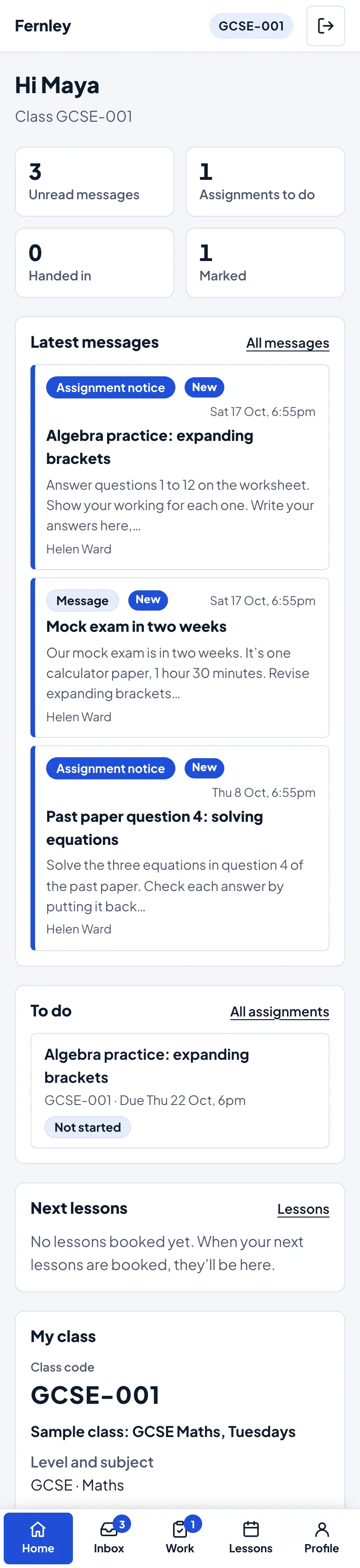
On a phone the menu becomes a row of tabs at the bottom of the screen, and the Inbox tab shows how many messages are unread.
Home
- Hi Maya, with their class code and their next lesson.
- Four tiles: Unread messages, Assignments to do, Handed in and Marked. Each one opens its list.
- Latest messages, To do (assignments not handed in yet, soonest due first), Next lessons and My class.
Inbox
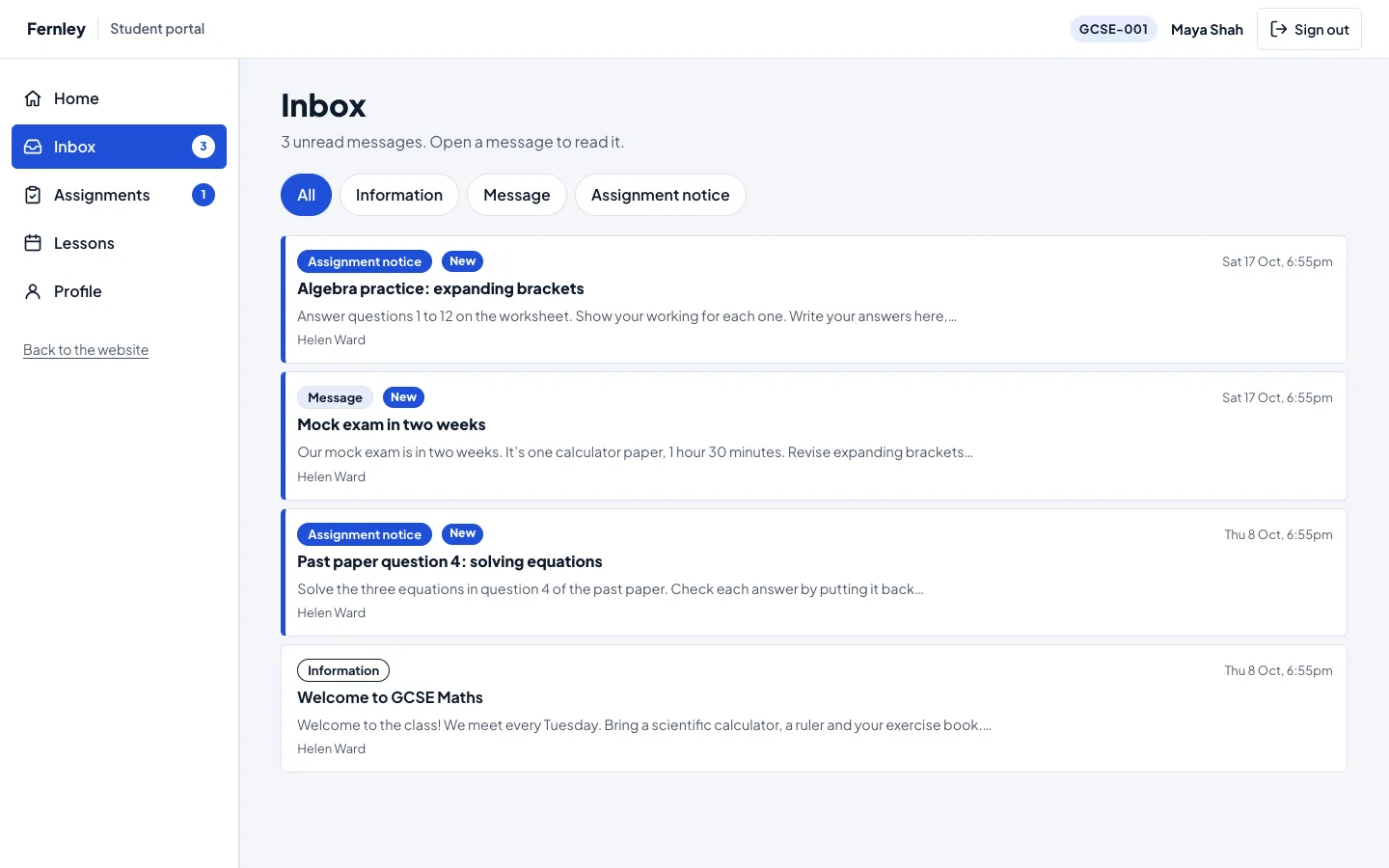
Messages to the student's classes, newest first. Unread ones have a coloured edge and a New label. The buttons at the top show All, or only Information, Message or Assignment notice.
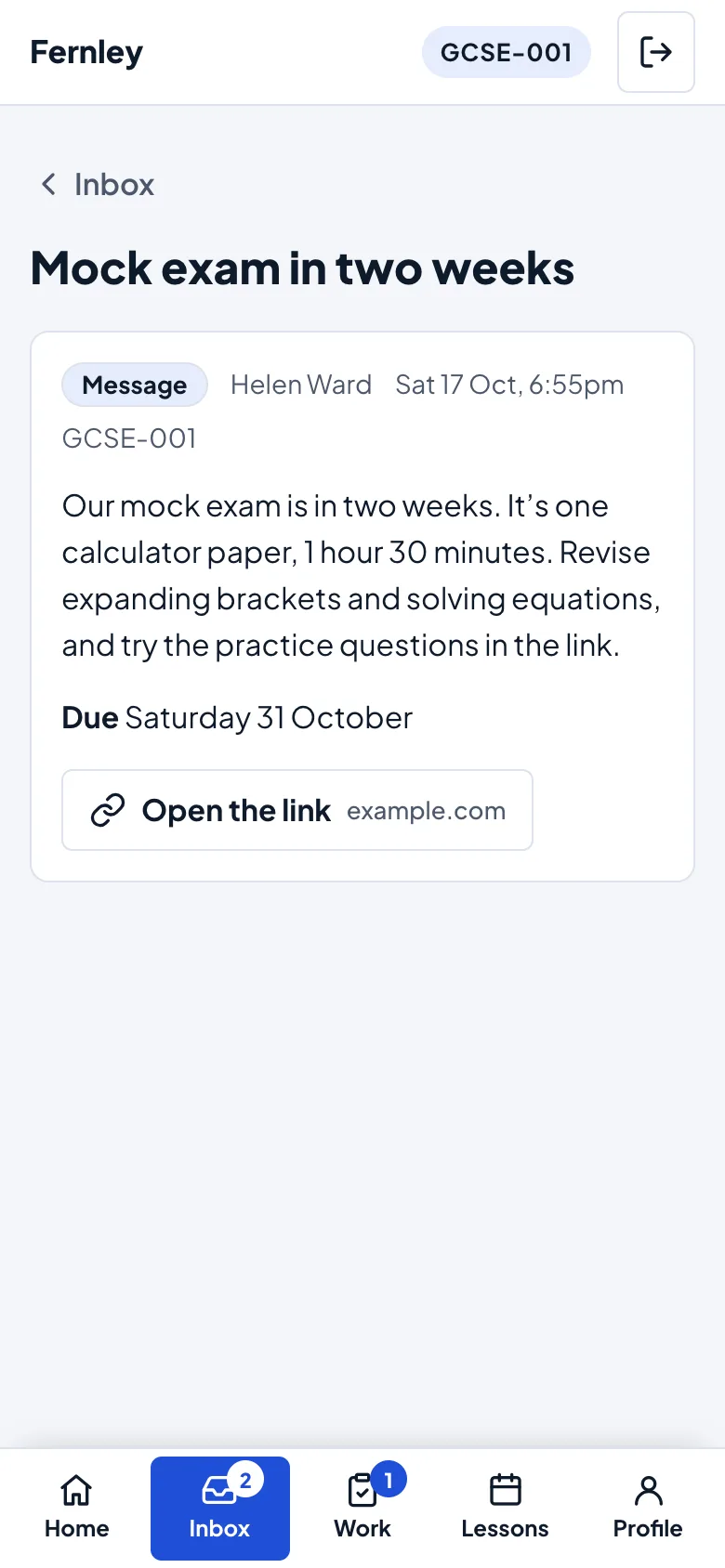
Opening a message shows all of it: who sent it and when, the class, a due date, a link (Open the link) and a file if there is one. An assignment notice has an Open the assignment button.
A message is read when the student opens it here. That's what tutors see as "Read by 3 of 5" (see Class messages). The emails the website sends aren't tracked.
Assignments
Three lists: To do, Handed in and Marked. Each assignment shows its class, when it's due and where it stands:
| Label | What it means |
|---|---|
| Not started | Nothing handed in yet, and it isn't due yet. |
| Late: not handed in | The due date has passed and nothing was handed in. |
| Handed in | Handed in on time. |
| Handed in late | Handed in after the due date. |
| Marked | The tutor has marked it and returned it. |
Opening an assignment shows the instructions, the due date, the link or file the tutor added, and the form to hand in the work. See Assignments for what students can hand in and when they can change it.
Lessons
Their next lessons and places in group sessions, and their class: the same as on the Student area page (see Student accounts and the student area).
Tests
With Gradespace Assess connected, a Tests tab shows online tests for their class. Without it there's no Tests tab.
Profile
What you have on file: their name, the email they sign in with, their school year and, for a child, the parent or guardian. Change your password is here too.
Fast, and without JavaScript too
Moving between tabs and sending a form happens in place, without loading a whole new page, and the browser's Back button works as usual. On a very old browser, or with JavaScript switched off, every page and form still works: it just loads each page in full.
Privacy
- A student sees only their own messages, assignments, work, marks and lessons. Typing another number into the address shows "Not found".
- The portal has no cookie banner: it only uses the cookies needed to stay signed in.
- Search engines are told not to list it, and it isn't kept in caches.
Before you start
You need:
- Student accounts for your students (see Student accounts).
- Classes with the students in them (see Classes).
- A Pro or Agency licence.
The Student area page from before now leads to the student portal, so links to it (and the Student sign-in link in the starter menu) keep working. An invitation link sent before the update still works on that page.