Running your website
The staff portal (Pro)
The app-like page where tutors and the office work with their classes: My classes, Messages, Assignments and marking, Students and Timetable (and Tests with Gradespace Assess), on a computer or a phone; who sees what, and where tutors start.
On this page
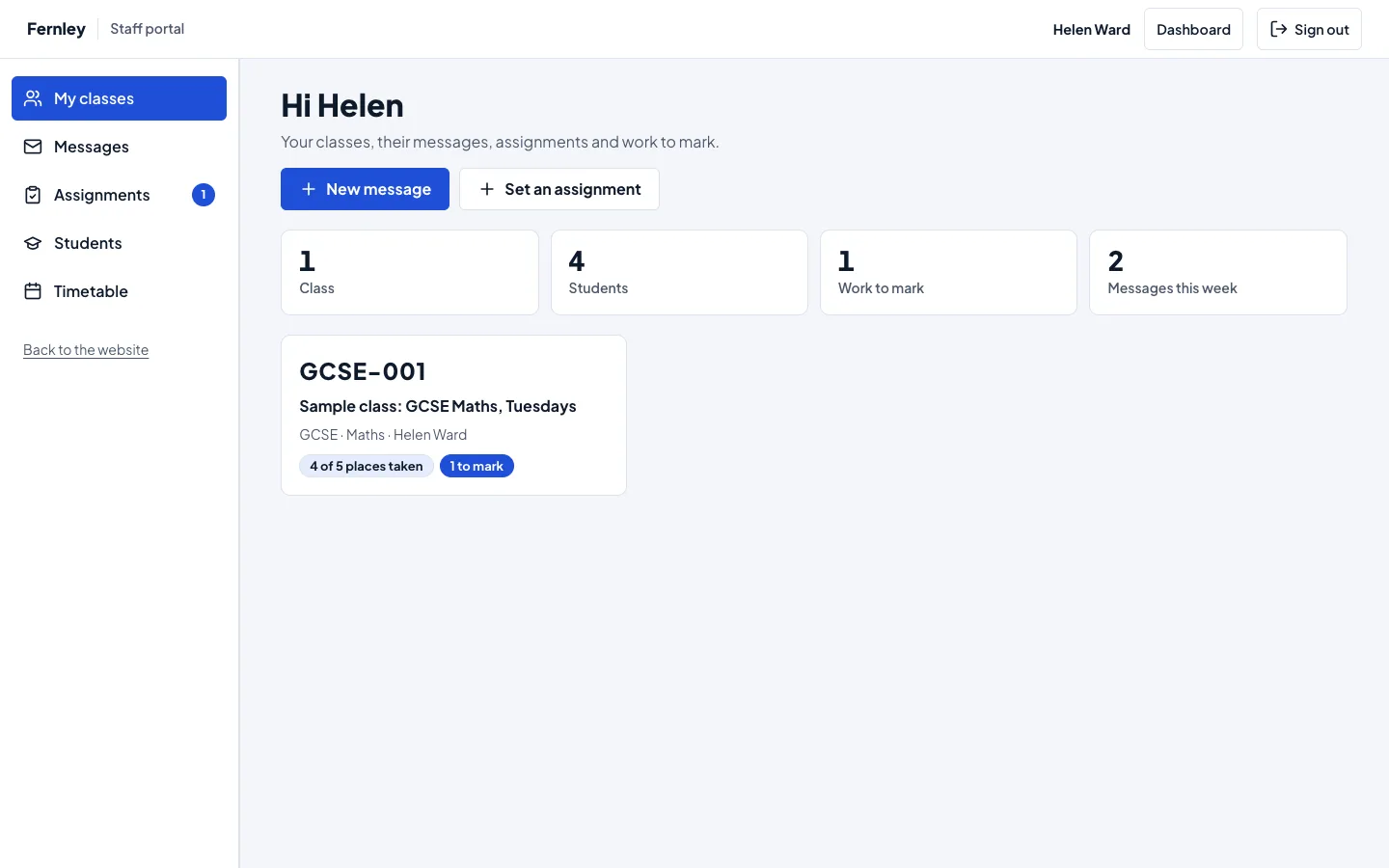
The staff portal is where tutors and the office work with their classes. Like the student portal, it looks and works like an app, on a computer and on a phone. Tutors can do all their class work here without opening the WordPress dashboard.
The staff portal needs a Pro or Agency licence. Features marked (Pro) need a Pro or Agency licence.
Where it is
- The portal is at yoursite.com/staff/. In the dashboard, Tutoring → Staff portal and Staff portal in the top bar open it.
- Tutors start here after signing in. To send them to the Today screen instead, switch off Tutoring → Settings → Lessons → Tutors start in the staff portal after signing in.
- The office and administrators start on the Today screen, as before. Dashboard at the top of the portal goes back to it.
- If you already have a page at /staff/ (such as "Our staff"), change The staff portal's address in the same settings.
Who sees what
| Tutors | The office and administrators | |
|---|---|---|
| Classes | The classes they teach | Every class |
| Messages | Messages to their classes, with read counts for their own students | Every message, with every student |
| Assignments and marking | Their classes' | Every class's |
| Students | The students in their classes | Everyone in a class |
| Timetable | Their own lessons | Every lesson |
A tutor's sign-in must be linked to their tutor profile (Tutoring → Tutors, open the tutor, Their sign-in), and the tutor must be one of the class's Tutors (see Classes). Typing the address of another tutor's class or student shows "Not found".
My classes
The start page: four tiles (Classes, Students, Work to mark, Messages this week) and a card for each class with its code, name, places and how much work there is to mark.
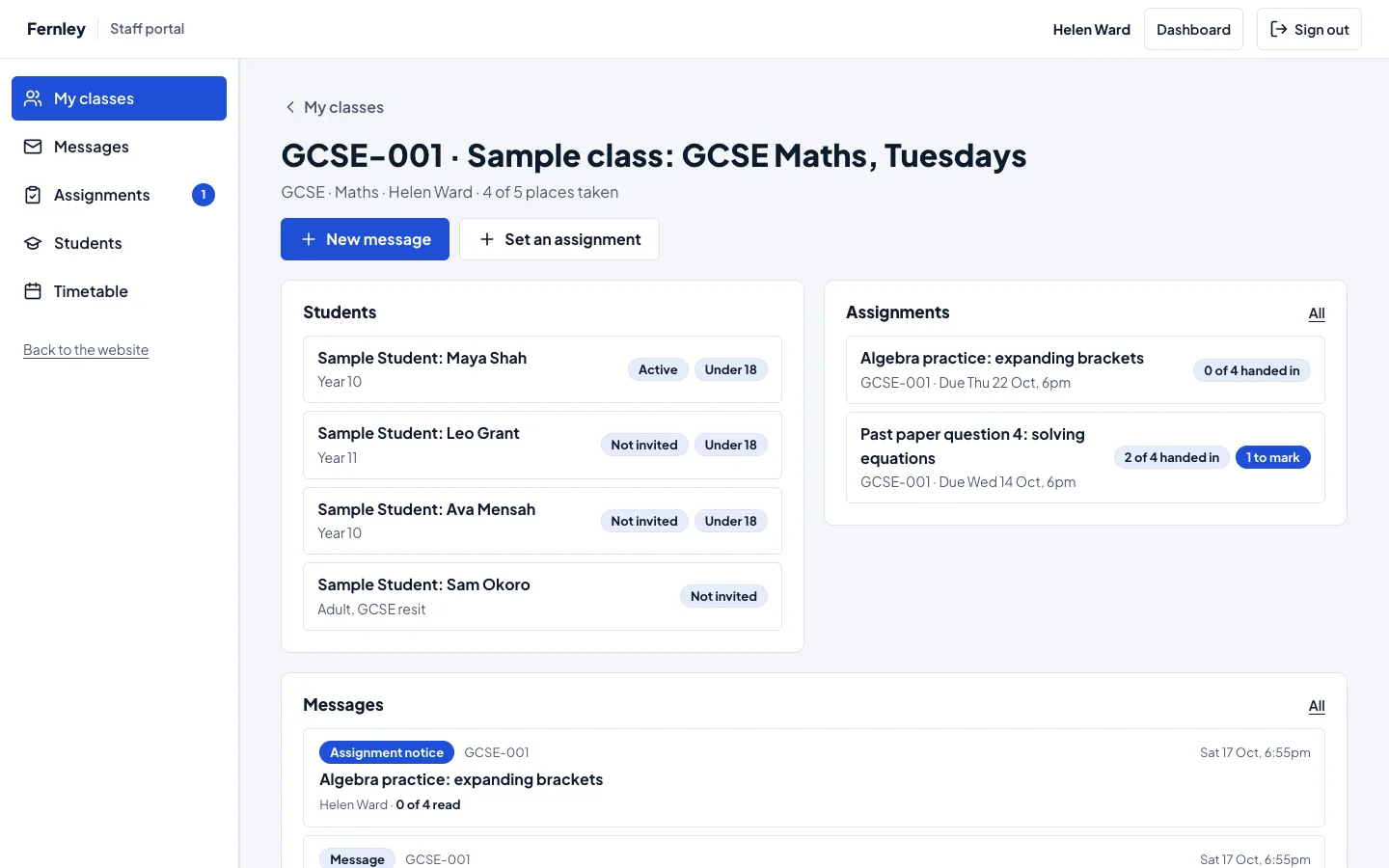
Open a class to see its Students (with their student account and whether they're under 18), its Assignments and its Messages, and to send it a message or set it an assignment.
Messages
The messages to your classes, newest first, each with how many have read it, for example Read by 2 of 4. New message writes one. See Class messages.
Assignments
To mark at the top lists the work students have handed in and you haven't returned yet, oldest first. Below it are all the assignments, with how many students have handed in and how many are still to mark. See Assignments.
Students
The students in your classes, with their classes and account status. Type part of a name in Find a student. Open a student to see their details (for a child, the parent or guardian on file) and where each assignment stands.
Timetable
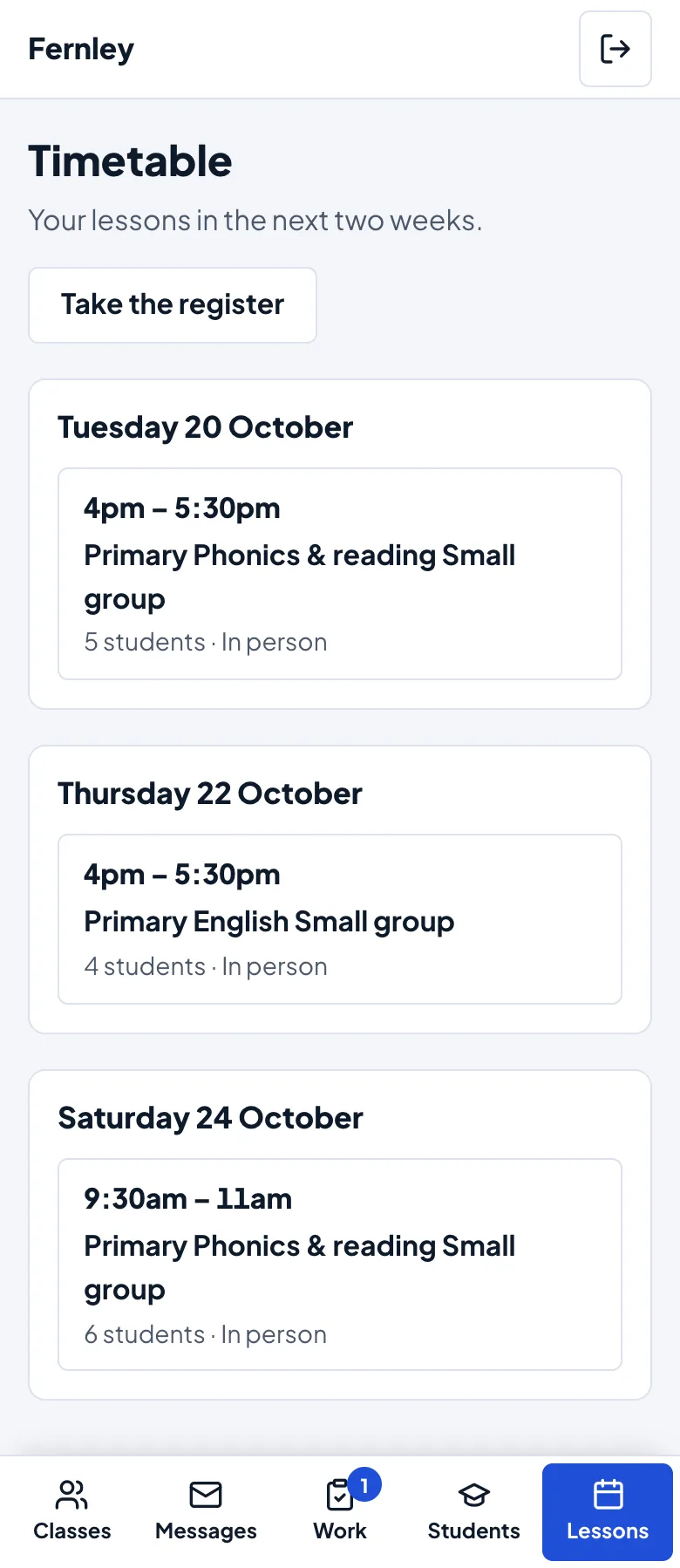
Your lessons for the next two weeks, day by day: the time, what, the student or the number in the group, and online or in person. A lesson waiting to be confirmed says To confirm. Take the register opens the register in the dashboard (with Pro).
Tests
With Gradespace Assess, which connects your website to TargetGrade, a Tests tab shows your classes' online tests. Without it there's no Tests tab.
On a phone
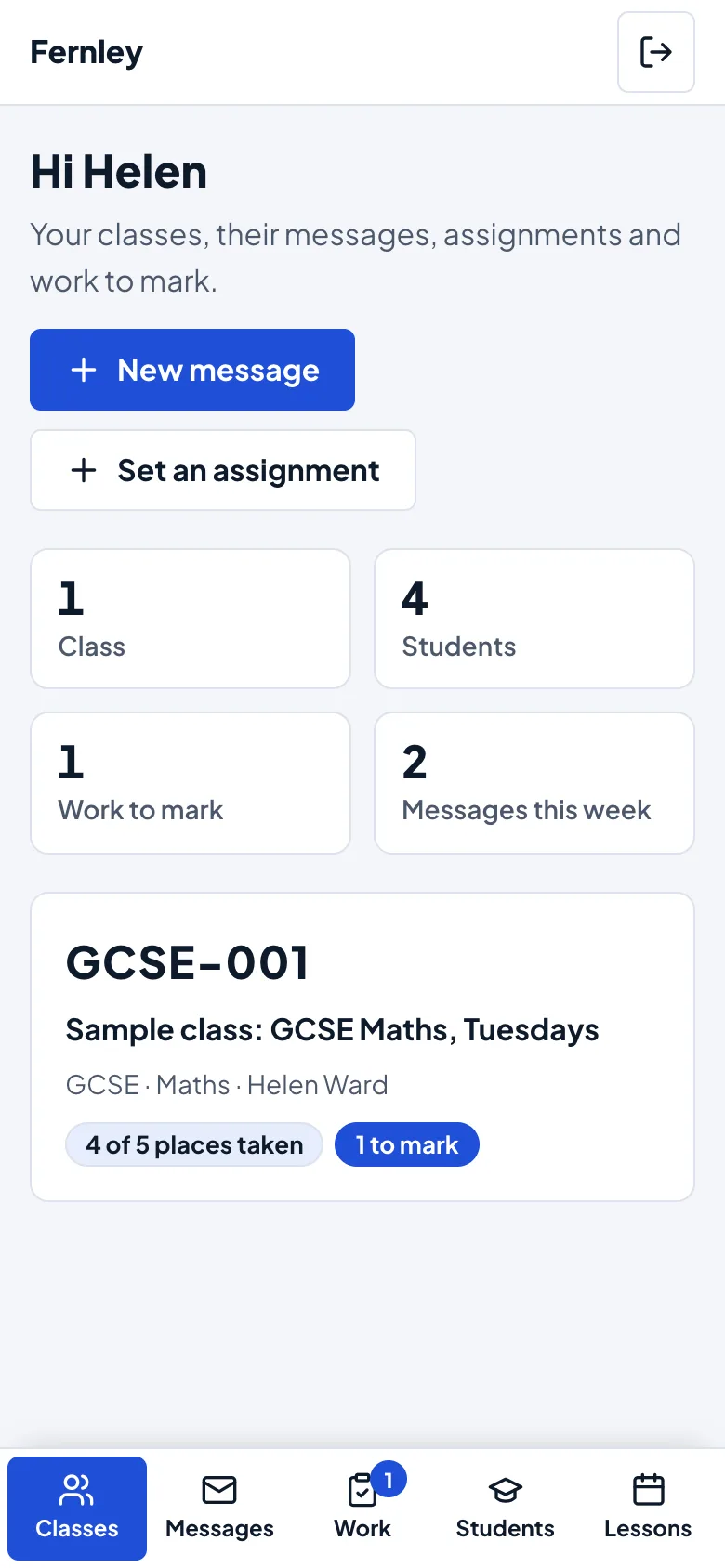
The menu becomes a tab bar at the bottom: Classes, Messages, Work, Students and Lessons (and Tests with Gradespace Assess). The Work tab shows how much there is to mark.
The dashboard is still there
Nothing in the dashboard changes. The office can still manage classes, students and accounts under Tutoring; the Classes screen has a link to each class in the staff portal.