Running your website
Requests for another subject (Pro)
Students asking, in the student portal, to take another subject you teach at their level; the office's email, approving it (the subject added to their group) or declining it with a reason, the emails to the student and their parent, and where students see the answer.
On this page
A student who would like to take another subject can ask for it in the student portal. You see the request, approve it or decline it, and the student (and their parent or guardian, for a student under 18) is emailed either way.
Requests need a Pro or Agency licence. Features marked (Pro) need a Pro or Agency licence.
Switching it on or off
It's on to start with. To change that:
- Go to Tutoring → Settings → Lessons.
- Under Classes and student accounts, switch Students can ask for another subject on or off.
- Click Save changes.
When it's off, students don't see the form; requests already made stay under Tutoring → Subject requests.
What the student does
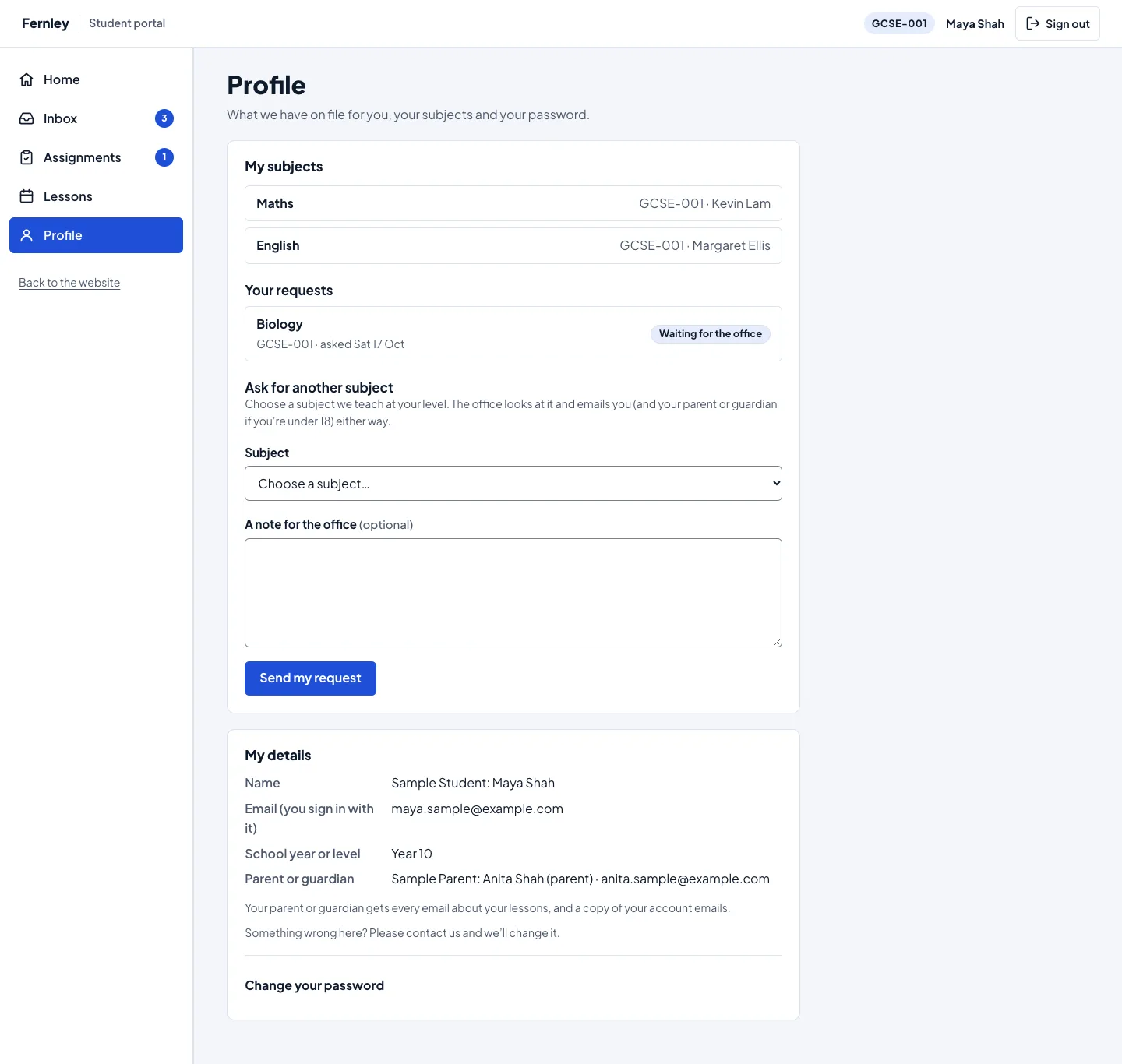
- In the student portal, they open Profile.
- Under My subjects they see the subjects they take, with their class and tutor, and their requests so far.
- Under Ask for another subject, they choose a Subject and can write A note for the office.
- They click Send my request.
The list only offers subjects your tutors teach at the student's level (a tutor with no levels ticked counts for every level), and leaves out the ones they already take or have asked for. A student in more than one class sees the subjects under each class's code.
A student can have three requests waiting at once. When the office answers one, they can ask for another.
Each request shows where it stands: Waiting for the office, Approved, or Declined (with your reason).
The email to the office
The office gets an email, Subject request: Maya Shah would like Biology, with the student, the subject, their class and their note, and a button to answer it. Turn it on or off under Tutoring → Settings → Email ("A student asks for another subject").
How to answer a request
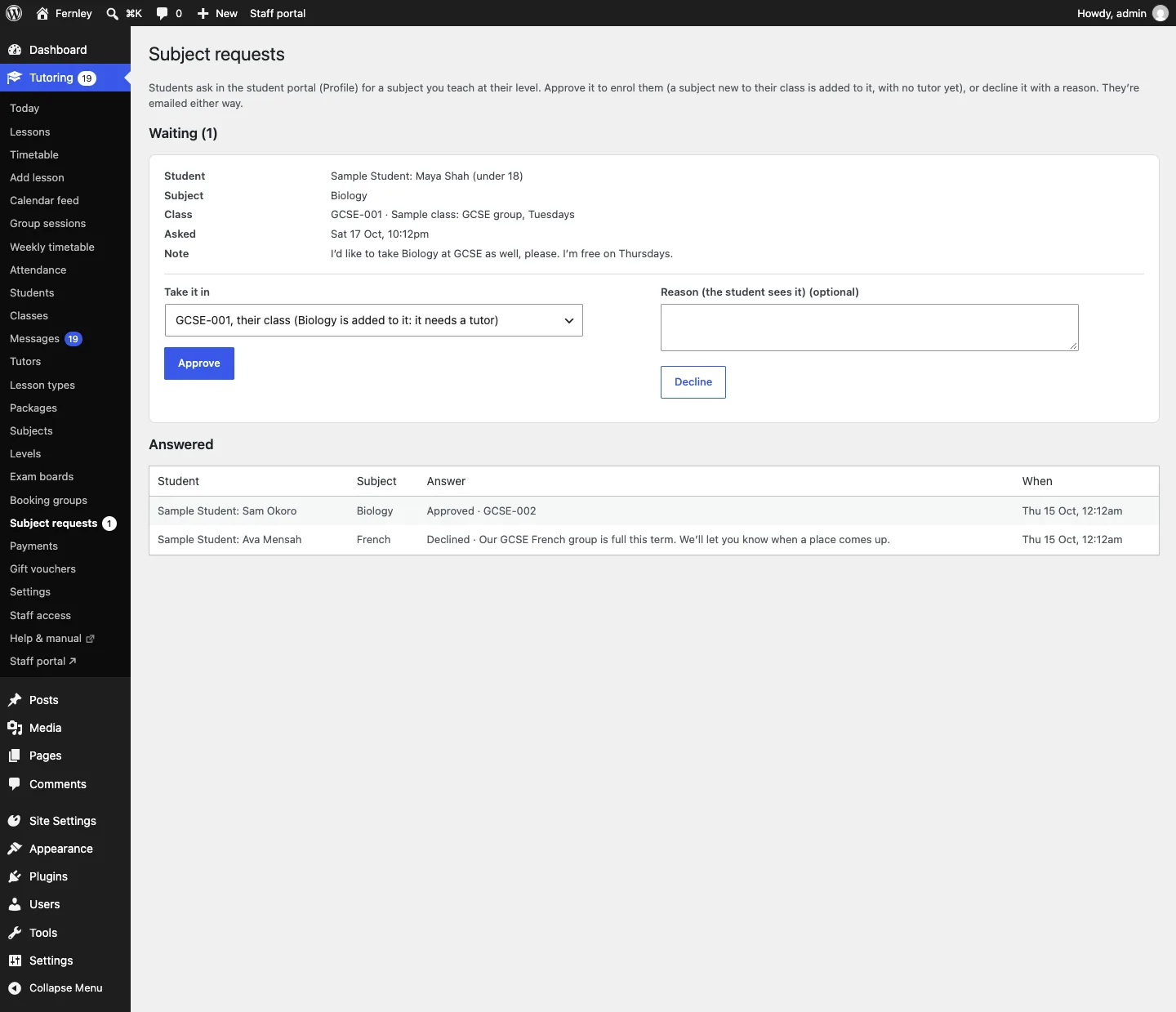
Go to Tutoring → Subject requests (the menu shows how many are waiting), or the Requests tab in the staff portal. Each waiting request shows the student, the subject, their class, when they asked and their note.
To approve it
- Under Take it in, leave the student's own class, or choose another open class at their level that already teaches the subject and has a free place.
- Click Approve.
The student now takes the subject in that class. If their own class didn't have the subject, it's added to the class with no tutor, and the class shows Needs a tutor: choose one on the class's screen (see Groups and subjects). Approving in another class puts the student in that class too, for that subject.
To decline it
- Type a Reason if you'd like (the student sees it), for example "The Biology group is full this term."
- Click Decline.
What the student is told
Either way, the student gets an email (You're taking Biology, or About your request for Biology, with your reason), and for a student under 18 their parent or guardian gets a copy. Turn these emails on or off under Tutoring → Settings → Email ("Subject request answered"). The answer also shows on the student's Profile.
In the staff portal
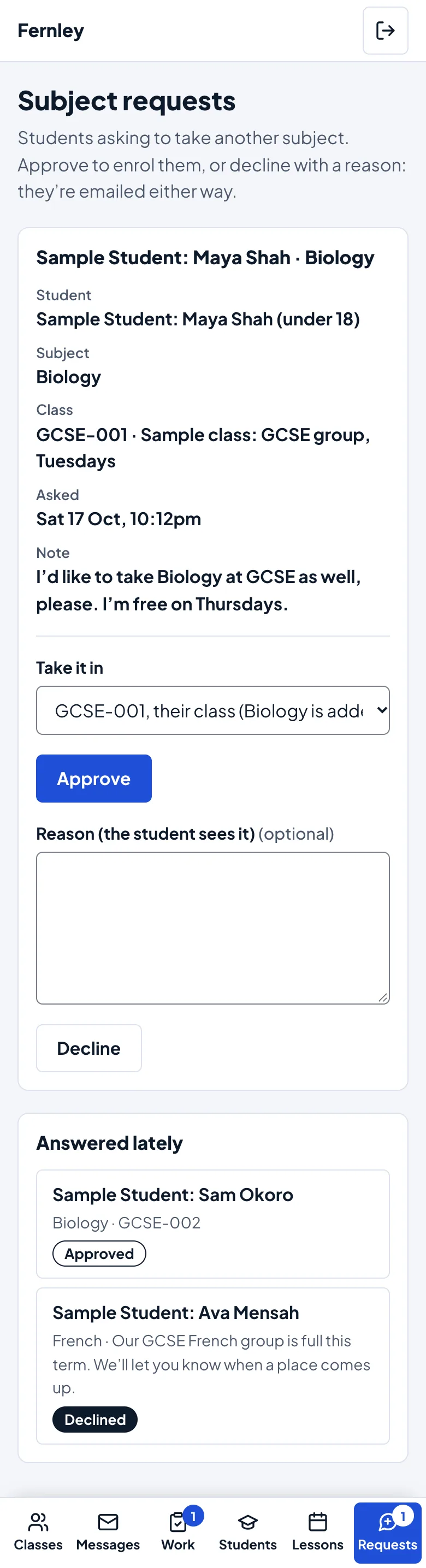
The office has a Requests tab in the staff portal, with the number waiting. It works the same way, on a computer or a phone. Tutors don't see requests: only the office answers them.
Privacy
A student's requests, with their note and your answer, are in their personal-data export, and are deleted with their record (see Privacy and emails).